
Need Zoho information or help due to COVID-19? Let us know.

Search results for : zoho app

What not to look for in an IT Consultant Zoho ZBrains

What Not To Look For In An IT Consultant

Hiring an IT consultant, whether for a short-term project or a year-long contract, can be an overwhelming experience. You place so much trust in a consultant to work on critical tasks, the configuration of your software, and more – ultimately, the foundation of your business. While you know what you should look for, have you ever thought about what you shouldn’t look for?

At ZBrains, we’ve partnered with businesses to help understand and enhance efficiencies within companies, so we’ve truly seen it all – including what not to do.

Here are 5 things not to look for in an IT consultant.

1. You shouldn’t hire a consultant who won’t train your staff.

If an IT consultant comes in to assist with your business process or software implementation, they need to train your staff in the process. If a consultant is not open to training your staff, it is a clear indication that you should stay far away. A consultant typically has an end term or a contract. If your staff is not trained on the projects or software that the consultant is implementing, your employees will be unsure of how to move forward once the contract is over and the consultant is gone.

2. You shouldn’t hire a consultant who is wary of confidentiality agreements.

Confidentiality agreements and nondisclosure agreements will help you sleep better at night – plain and simple. They ensure that your business strategies, customer information, and any other sensitive business information remain secret. With access to sensitive information within the IT sphere of your business, it’s important to have a complete and total understanding of confidentiality with your consultant. Ensure your chosen consultant signs on the dotted line.

3. You shouldn’t hire the most inexpensive consultant on the market.

With adequate knowledge and experience comes a financial investment that you can depend on. Focus on hiring a consultant who has experience within your particular industry and environment. He or she should be able to navigate the complex areas of IT and truly understand what you – and your clients – need. Being attuned to you and your business’s needs will heighten your chances of success when working with a consultant. Be prepared to seek expertise and experience, not always price.

4. You shouldn’t hire a consultant who is stuck in their ways.

Everyone has different ways on how to do their job – whether it be their process or their approach. Yet, innovation and ambition are key, and you should certainly search for a consultant who can deliver both of these attributes. A plethora of experience combined with an individual who will truly go above and beyond what is required of them will be a perfect match for your business.

5. You shouldn’t hire a consultant who has not yet worked within your industry.

The promise of research and adaptability might sound positive, but be careful – a consultant who has yet to work within your industry should be a red flag. They may not be familiar with all of the nuances and common challenges within your industry. Whether you are a marketing firm or a B2C retail business, experience within your existing software and industry is integral to success.

When it comes to hiring an IT consultant, there are plenty of qualities and characteristics to look for. With these 5 tips and recommendations, you will be set to embark on your next search for an IT consultant for your business.

At ZBrains, our Zoho consulting focuses on expertise, impact, and efficiency. Combined with our training services, Zoho deployment, and integrations we are adaptable to your business’s needs. To learn more about how you can get your business operating at its full potential, drop us a line and schedule a time to talk with a chat with a member of our ZBrains team today!

[button color="red" url="https://zbrains.acuityscheduling.com/schedule.php?appointmentType=4352316"]Schedule a Consultation[/button]
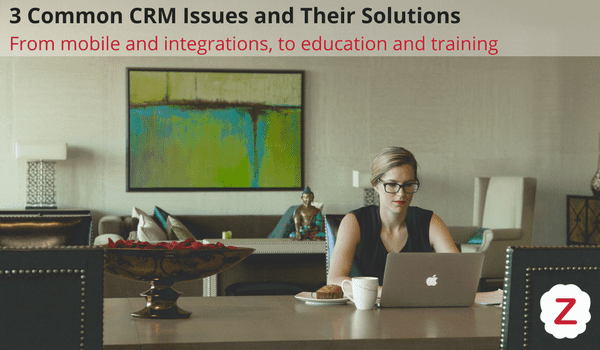

Woman sitting at her desk reading about common crm issues and zoho solutions

Overcoming CRM Challenges: Expert Insights and Solutions

When new clients come to us at ZBrains, we often hear one of two things – either they have faced significant challenges with a previous CRM software they have used and they’re ready to move on, or they have just signed with Zoho and are unsure where to start. With these two challenges, you could say that we’ve heard it all – from A to Z; so, you can be sure that we have answers to your common CRM issues.

After thousands of conversations with various clients, we’ve wrangled our experts at ZBrains to tell us their top 3 most common CRM issues from new clients. If you’re brand new to CRM management or perhaps you have questions about your current CRM, we’re sure you’ll identify with one (or more) of the challenges below.

Here are the top 3 common CRM issues (and their solutions).

Business woman on phone looking at Zoho mobile applicationChallenge: I can’t access my CRM on-the-go.

Imagine you want to access a client contact history while en route to a meeting, or away from your desk – but you can’t access your CRM through your phone. Ugh.

Solution: Discover a CRM that works on-the-go.

Challenge: My team does not know how to use my CRM properly.

Whether it’s because of lack of process or lack of training, your team just doesn’t understand or know how to use the major features of your CRM, it can be difficult to get your employees on-board entirely with your CRM.

Solution: Educate, Track, Customize.

Save time by tracking everything- from emails to phone calls, and meeting logs in between. Zoho has it all – enabling your team to make the most of your CRM. Have a program that educates your team on the benefits and use-cases before diving in head first. In our experience, this has truly made a difference in overall adoption and usage. Develop a solid process for your team and have customizable solutions for your business processes. Get started on the right foot by signing up for one of our Zoho implementation plans.

Challenge: My CRM doesn’t integrate with the software I use every day.

Are you always flipping through tabs, browsers, applications and spending far too much time logging-in, or recovering lost passwords?Is it just another application that you need to manage?

Solution: Find an all-in-one solution.zoho one

This is especially true for sales and marketing teams, who certainly use many, many applications on a daily basis. From CRM to email, social media posting applications and more, it can be a challenge to keep track of it all. Zoho One has 35+ integrated applications that encompass everything from CRM, email newsletters, documents, inventory, and more. Here at ZBrains, we offer additional add-ons and custom integrations for your favorite business products, such as QuickBooks,  Magento, and more.

It’s important to find a CRM that can integrate with a variety of solutions to optimize the potential of your business. It will keep you on-track and ready to close more, win more, and earn more.

From employees using your CRM (properly) to finding software that works for all teams in your company, these are our top 4 common CRM issues and their solutions. They’ve been compiled by our Zoho certified consultants here at ZBrains who are here to help you with your burning questions.  Feel free to drop us a line!


Connect with Us


ZBrains Solves Problems

How ZBrains Solves Problems and Provides Solutions

When searching for a partner, whether a marketing agency, software consultancy or strategic contractor, there are three key areas of consideration – expertise, impact and efficiency. Regardless of the type of vendor or partner, every company or contractor your business partners with should focus solving problems and providing the solutions you need. As one of Zoho’s top US partners, we are proud to do just that – ZBrains solves problems, and we consistently provide solutions. We focus on generating ROI and impacting revenue for every single one of our clients.

When we first meet with potential clients, we often hear the same five pain points (so, if you’re reading this and you feel one of the below, you’re not alone):

    • “Our team doesn’t have time for X”
    • “Our team is so busy doing Y”
    • “Data is spread across so many pieces of software”
    • “We need education on X and Y”
    • “We have experienced massive growth, but we need something scalable”

These are the problems we hear, and these are the solutions we solve.

But, how do we as consultants truly find solutions for our clients? In this blog, we’ll take you through four solutions we use for clients across a plethora of industries and verticals. This will help you and your team consider pivots in process, planning and strategy as we move into the year ahead.

Here are four ways ZBrains solves problems and provides solutions.

1. We focus on bridging the gap.

As consultants, we truly focus on bridging the gap between business needs and technology solutions through open collaboration and business process analysis with our clients. We are focused on on enabling your business to make smart technology investments, improve practices, and save time and money. Your in-house team might be comfortable with certain processes over the years – yet, as a Zoho partner, we can provide a different view and a new spectrum of expertise that can be applied on bridging certain gaps in processes and efficiencies. We practice the ‘connector’ approach – if our clients have a pain or need, we provide the solution – bridging the gap between the two, and taking you through every single step of the way.

2. We focus on reducing costs and becoming more efficient.

When planning budgets, especially as companies reach year-end, reducing costs is often key to success. While increasing revenue is the favorable choice for any business in any industry, becoming more efficient is often the key driver to impacting the bottom line.

Whether it’s through software or business process, we bring consultation and expertise to the table – and work with you to provide measurable impacts to your team. Instead of telling us what you need, we become part of your team, offering a consultative approach every step of the way. We are always learning from our clients’ successes and challenges, which is why we ensure that every project is better than the last.

3. We are always innovating.

Have you seen the integrations and add-ons we provide? We are proud to have a team of developers and strategists who are focused on solving any problem that comes our way – seriously, any problem. We’re created add-ons for calendar scheduling, invoice and proposal management, integrations for services like Slack, and so much more. If you have a challenge, ZBrains solves problems and provides solutions.

4. We work with every level of management.

Working with executives is different from working with mid-management – we get that. Executives see things differently from mid-management – they look at data from a 40,000 foot view, whereas mid-management are in the trenches, making changes to tactics and pulling levers to generate results. This is exactly we why provide reporting solutions for executives, while developing apps and integration for mid-management.

At ZBrains, we are proud to be a leader in experience and industry knowledge with Zoho, CRM management, business processes and integrated solutions. As we are planning ahead for 2018, we are excited at the road ahead and can’t wait to bring on new clients to our team – our ZBrains family. ZBrains solves problems and provides solutions every single step of the way – and we’re ready to do it for you!

QuickBooks Online DIY Signup Readme

Hi there!  Thanks for stopping by.

Here’s how to fill out the signup form for the DIY QuickBooks Online integration.  The form’s purpose is to collect some basic information, then let you create a username and password to access the integration dashboard, where you’ll be able to configure mapping from QuickBooks to Zoho by yourself.

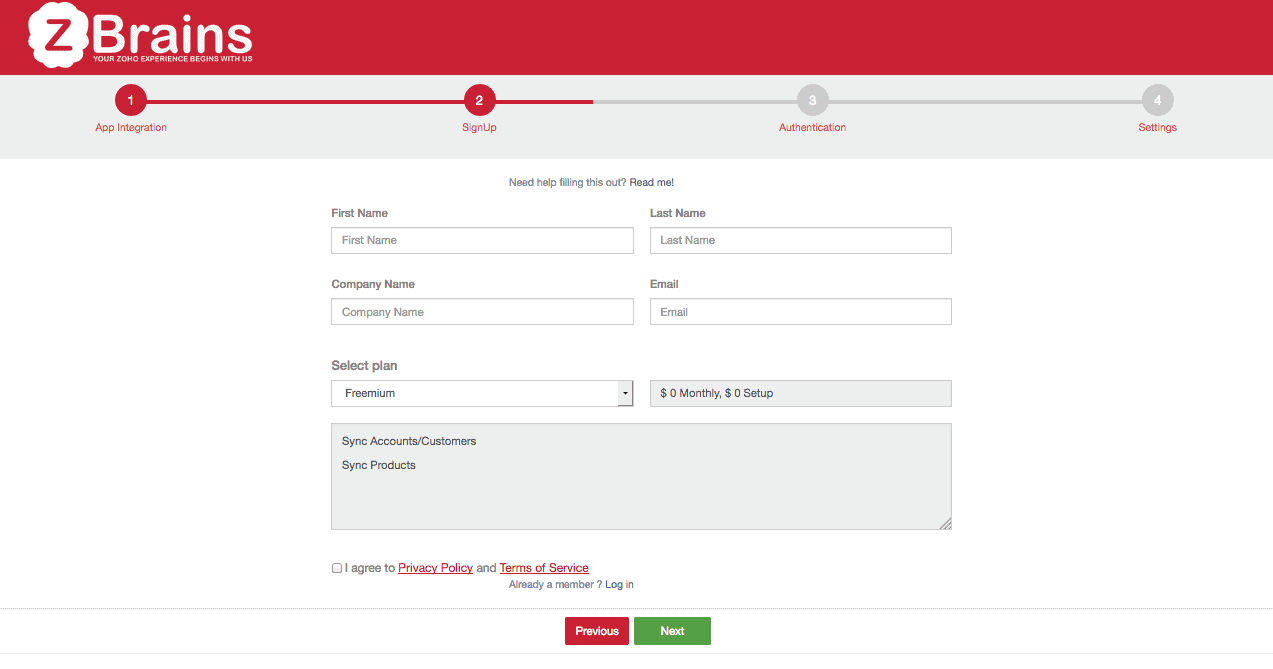
qbd-step-2

First Name, Last Name, Company Name: Hopefully these are self-explanatory!  If not, give us a call and we’ll try to help 😉

Email: This can be any email, not necessarily your Zoho email.  We’ll use it to send you announcements, links to the integration dashboard and to other integration-related content as necessary (but not too often – don’t worry).

Select Plan: Use the drop-down menu to select the syncing plan you’d like to use.  All premium plans require entering a credit card number, but you won’t be charged until after your 15-day free trial.

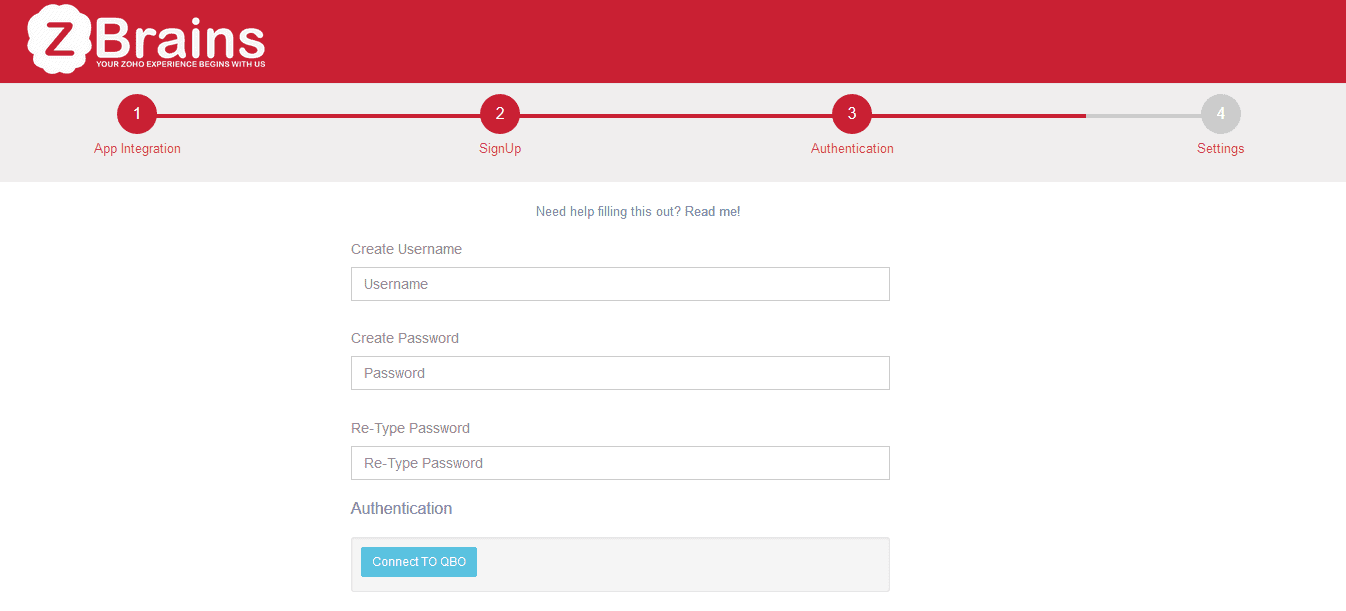
qbo-step-3

Create Username: This is what you’ll use to log into the integration dashboard.  Make it something you won’t forget!

Create Password: You’ll use this not only to log into the integration dashboard, but also to authenticate the QWC file that the QuickBooks Web Connector will use to run the integration.  Again, make sure this is one you won’t easily forget!

Authentication: Just hit the blue “Connect to QBO” button and the system will authenticate your QuickBooks instance for you.

Zoho Email Address, Zoho Password: Please make sure these are the admin’s credentials.

Zoho Authentication Token: You can generate one of these by logging into your Zoho CRM, clicking the “tools” icon (the one with the two wrenches), and clicking Setup.

  1. At the bottom of the middle column of options, click APIs.
  2. At the right side of the screen, at the same level as the CRM APIs heading, click the gear with the arrow beside it.
  3. From the drop-down menu, click Authentication Token Generation.
  4. On the Browser Mode section, type something into the field you’ll be able to use to identify the authentication token later if need be.  (Something like “QuickBooks” will do.)  Click Generate.
  5. On the page that follows, highlight the text that appears after “AUTHTOKEN=” and copy+paste this into the field on the integration setup page.

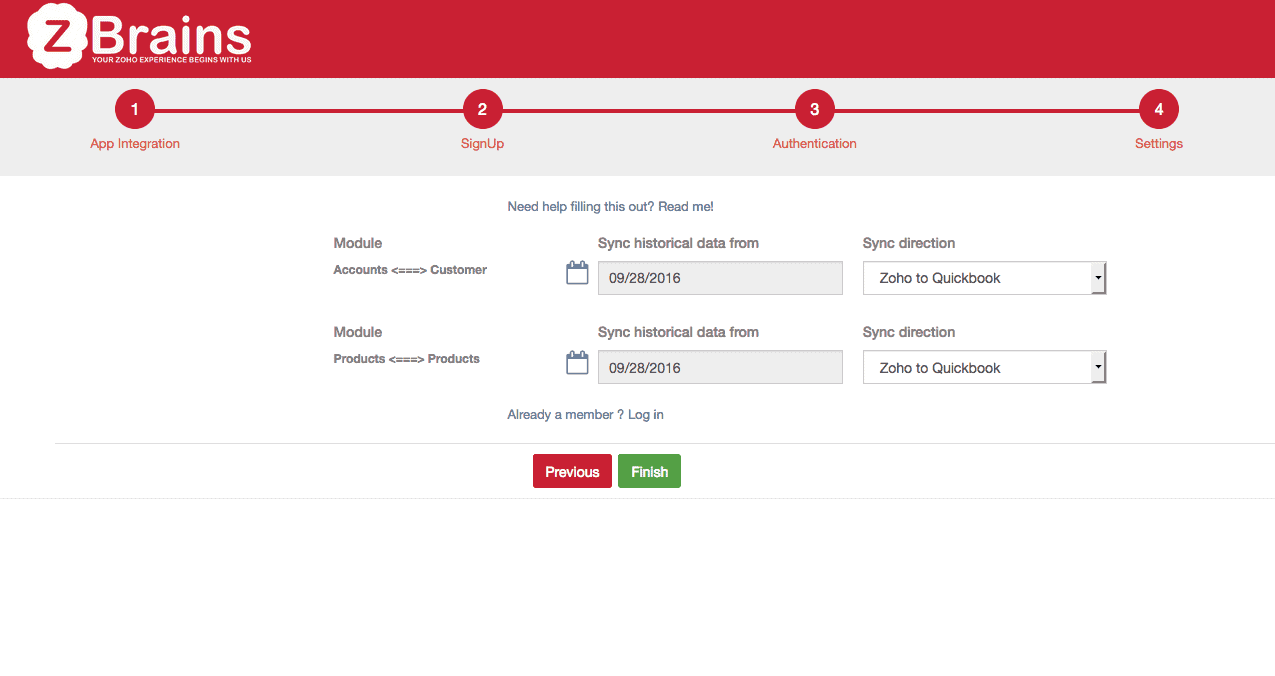
qbd-step-4

Sync historical data (for either annual premium customers or monthly or freemium customers who purchased the add-on): The Module options refer to the modules within Zoho you’d like to sync with QuickBooks.

  1. Select the dates you’d like the integration to reach back to, then select the direction you’d like the data to flow.
  2. Then, click Finish and you’ll be directed to the sign-in page.
  3. Use the credentials you created at the first step to log into the integration dashboard and begin field mapping.

…Need anything else?

Give us a call: (888) 207-4111, or contact us here.

Thanks for using the DIY QuickBooks integration!

CRM Training: Maximizing Business Benefits for Success

Thanks for signing up for our DIY Zoho QuickBooks Desktop integration!

diy zoho quickbooks

We’re really excited about this DIY Zoho QuickBooks Desktop integration, mostly because it’s so easy to use once you get it goingHere’s how to set it up once you’ve submitted your information for the first time.

  1. Log into the Admin panel.  The system should have redirected you to your panel once you signed up, but if you weren’t logged in immediately, use the credentials you created when you signed up (not your Zoho credentials, but the others ones).
  2. Set up your field mapping.  The first screen you’ll see will show all the Zoho and QuickBooks fields you can sync with the integration.  The system will try to guess which fields should be synced where based on field types, so be sure to go through all of them and match the appropriate fields in Zoho with the ones in QuickBooks.  Once everything looks good, click the green “Submit” button at the bottom of the screen.  Your sync preferences will be saved.
    • NB: If you’ve just added new custom fields to Zoho and don’t see them listed as sync options, just click the red “Sync Fields” button in upper right corner of the screen.  You should then see the new fields listed.
  3. Connect the integration to your QuickBooks Web Connector.

    • In QuickBooks, select the File menu and click Update Web Services.  The system may lag for up to 30 seconds; this is normal.  If you see an error message pop up, you can also ignore that – it’s a known bug across multiple versions of QuickBooks.  Your Web Connector screen should load.
    • On the left side of your DIY Zoho QuickBooks integration Admin panel, click “Download QWC File.” The file should appear in your QuickBooks “Company Files” folder by default, but if it doesn’t, just run a search for its exact location using the file name that pops up on the download bar at the bottom of your browser.  The file extension should be qwc.
    • On your Web Connector screen in QuickBooks, click the Add an Application button.  Locate your qwc file and click Open.
    • You should see a message confirming you’re allowing our server (tom.agilityintegrations.com) access to your QuickBooks.  Click OK.
    • You’ll see another prompt asking what level of access you’ll allow the integration.  Please select the fourth option: Yes, always; allow access even if QuickBooks is not running.  This option allows us to troubleshoot if you run into any issues with your DIY Zoho QuickBooks integration.  (You can ignore the “Allow access to social security numbers and credit card numbers” checkbox.  The integration does not use this information.)  Click OK, then click Done on the dialog box that pops up afterwards.
  4. Turn on the application in the Web Connector.  Find the integration application, called “Zoho-QuickBooks Integration,” in the Web Connector window.
    • In the field to the right, enter the password you used when you created your DIY account and click Save.
    • Check the box next to the “Zoho-QuickBooks Integration” item and click the “Update Selected” button at the top of the Web Connector window.
      • NB: You may get an error message because the sync can be inundated with data the first time it runs.  This is normal; just run it once more if you receive this error and the issue will resolve itself.
  5. Enter some test data!  At this point, the DIY Zoho QuickBooks integration should be completely functional, but you’ll want to test it yourself.  In Zoho CRM, create a new Account with a name you’ll recognize, like “TEST ACCOUNT QB.”  Enter a phone number and address, too.
    • Go back to your Web Connector window and click “Update Selected” to run the integration again.
    • Confirm the test account has arrived in your QuickBooks.
  6. Set your sync time interval.  Click the auto-run checkbox and set your sync interval according to your preference.  The DIY Zoho QuickBooks integration sync should run every 15 minutes at minimum, so do not enter a number greater than 15.
  7. Track your synced data.  Use the “Modules” menu item on the left side of the integration Admin panel to expose the list of Zoho modules you’re syncing, and click each individual module to view a list of records the integration has synced up to that point.
    • NB: You can use this list to track errors, too.  If a record does not sync, it will appear in the list with “Error” in the sync status.  You’ll see a reason for the error (e.g., record name too long) in the adjacent column.
  8. Annual customers only: Migrate legacy data.  The DIY Zoho QuickBooks integration is designed to sync new records that come into either QuickBooks or Zoho, but you can also use it to migrate past data into either system.  To do this:
    • Click your username in the upper right corner of the integration Admin panel and click “Reset Sync Date.”
    • On the next screen, select the first day you’d like the integration to sync from, click Submit.
    • Manually run the integration using the Web Connector.  Wait about a minute for the system to catch up – your old data will appear after that.

Thank you again for choosing us to supply your DIY Zoho QuickBooks integration!  Please, let us know if anything in these instructions needs clarification by calling (888) 207-4111.

QuickBooks Desktop DIY Signup Readme

Hi there!  Thanks for stopping by.

Here’s how to fill out the signup form for the DIY QuickBooks integration.  The form’s purpose is to collect some basic information, then let you create a username and password to access the integration dashboard, where you’ll be able to configure mapping from QuickBooks to Zoho by yourself.

qbd-step-2

First Name, Last Name, Company Name: Hopefully these are self-explanatory!  If not, give us a call and we’ll try to help 😉

Email: This can be any email, not necessarily your Zoho email.  We’ll use it to send you announcements, links to the integration dashboard and to other integration-related content as necessary (but not too often – don’t worry).

Select Plan: Use the drop-down menu to select the syncing plan you’d like to use.  All premium plans require entering a credit card number, but you won’t be charged until after your 15-day free trial.


qbd-step-3

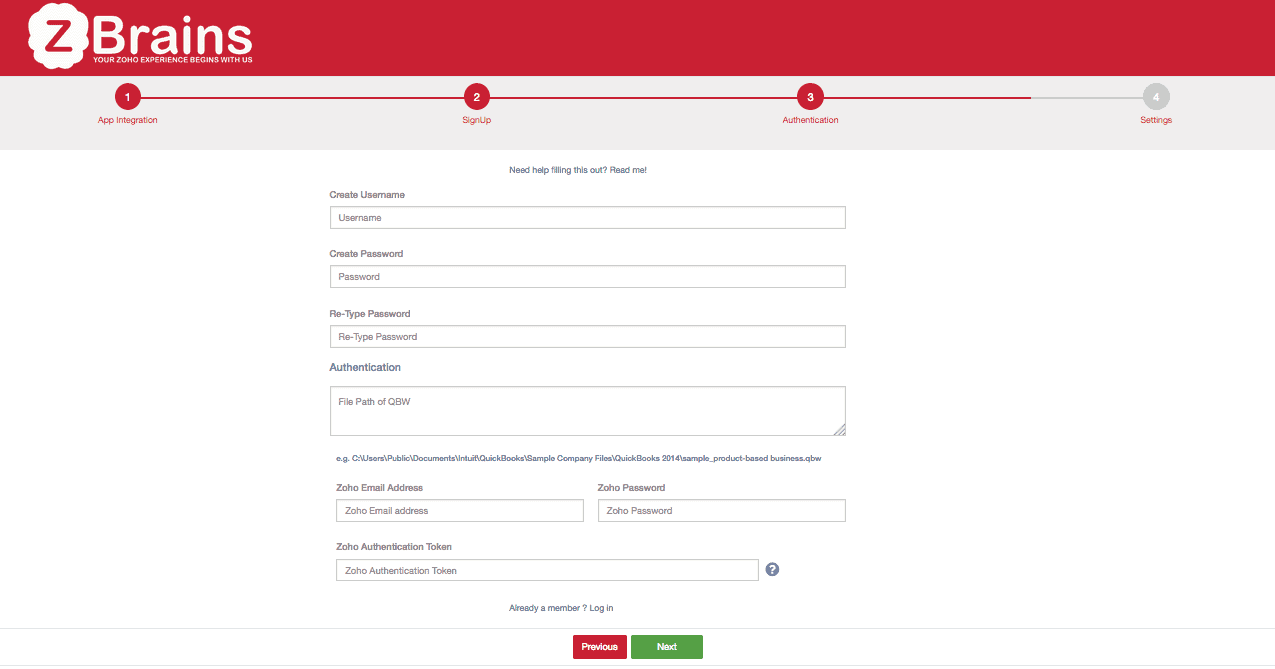
Create Username: This is what you’ll use to log into the integration dashboard.  Make it something you won’t forget!

Create Password: You’ll use this not only to log into the integration dashboard, but also to authenticate the QWC file that the QuickBooks Web Connector will use to run the integration.  Again, make sure this is one you won’t easily forget!

Authentication – file path of QBW: This is the QuickBooks company file path we’ll use to connect to your QuickBooks.

  1. To locate this, run a search for a file with the extension .qbw.  (Please make sure you do this from the computer your QuickBooks company file is located on, or through a remote desktop session with that computer!)
  2. When you’ve found your company file (hint: it will probably include your company’s name), right-click it (or, on a Mac, enable two-button clicking before right-clicZking) and select Properties.
  3. Select the Details tab, highlight the text after the File Path heading, and copy+paste that into the field.

Zoho Email Address, Zoho Password: Please make sure these are the admin’s credentials.

Zoho Authentication Token: You can generate one of these by logging into your Zoho CRM, clicking the “tools” icon (the one with the two wrenches), and clicking Setup.

  1. At the bottom of the middle column of options, click APIs.
  2. At the right side of the screen, at the same level as the CRM APIs heading, click the gear with the arrow beside it.
  3. From the drop-down menu, click Authentication Token Generation.
  4. On the Browser Mode section, type something into the field you’ll be able to use to identify the authentication token later if need be.  (Something like “QuickBooks” will do.)  Click Generate.
  5. On the page that follows, highlight the text that appears after “AUTHTOKEN=” and copy+paste this into the field on the integration setup page.

qbd-step-4

Sync historical data (for either annual premium customers or monthly or freemium customers who purchased the add-on): The Module options refer to the modules within Zoho you’d like to sync with QuickBooks.

  1. Select the dates you’d like the integration to reach back to, then select the direction you’d like the data to flow.
  2. Then, click Finish and you’ll be directed to the sign-in page.
  3. Use the credentials you created at the first step to log into the integration dashboard and begin field mapping.


…Need anything else?

Give us a call: (888) 207-4111, or contact us here.

Thanks for using the DIY QuickBooks integration!


DIY QuickBooks CRM Integration: Freemium Option Available

Note: as of 2019, the Freemium QuickBooks integration is deprecated.  We’d be happy to help you with a similar version of the integration – please contact us.

Howdy folks,

We’ve been working on perfecting our do-it-yourself (DIY) freemium QuickBooks integration for Zoho CRM for many months, and we’re really happy to finally announce that it’s complete and ready for you to use!

freemium quickbooks integration

DIY freemium QuickBooks integration for Zoho CRM

If you’re not in the loop, the DIY freemium QuickBooks integration is a lighter, free version of our QuickBooks Desktop integration.  (And, it also works for QuickBooks Online.)  Whereas our premium QuickBooks integration allows for syncing Accounts/Contacts, Products, Invoices, Sales Orders, Quotes, and Purchase Orders (among other items), the DIY freemium integration allows for syncing Accounts/Contacts and Products, perfect for businesses that need some syncing functionality but don’t need Invoices or Quotes passed from Zoho to QuickBooks or vice-versa.

freemium quickbooks integration

What are the pros?

We think there are a lot of great things about this freemium product:

  • It’s completely free – We call it freemium because it works just like a premium option, but we’ll never charge you for it.  Rest easy!
  • It’s easy to configure – Rather than depend on our engineers to complete your project, you can map your data and control the entire integration by yourself.  Not only is this simple to do, but it also saves a lot of time.
  • It saves time – If you create an Account/Contact in QuickBooks or Zoho CRM, you don’t have to worry about entering that name again; it’ll just pop right into the other system.  Whether it’s just saving you a minor inconvenience or a half hour every day, this is never a bad thing.
  • It saves overhead – Do you spend lots of time manually copying data from one system to another?  Well, imagine being able to use that time to do something productive – to finish a nagging project more quickly, for example – while this integration does that work for you.  You or your staff might even get to leave work a little earlier each day because of it.

freemium quickbooks integration

What about the cons?

Nothing’s perfect, of course.  Allow us to elaborate:

  • The Freemium CRM QuickBooks integration doesn’t provide as deep a sync as one of our premium integrations.  We think we’re pretty nice people over here, but at the same time, we can’t give away the farm.  If you need more functionality than just Accounts/Contacts syncing and Products syncing, you’ll need to use one of our premium integrations.  However, we’re going to roll out some Premium DIY integrations, too, so you’ll soon get the best of both worlds.  Keep your eyes peeled for those!
  • We can’t customize it.  As this is a completely free, completely self-contained product, we can’t provide any additional customization for it.  That doesn’t mean customization is impossible, of course – you’ll probably just need to buy one of our premium integrations if you want something more than the freemium product.

Why are we giving this to you?  Is there some kind of catch?

freemum quickbooks integration

Even if you didn’t ask this question outright, I know you’re wondering why we’d give you the Freemium CRM QuickBooks integration.  Are we just really benevolent people?  Of course we are!  But, that’s not why we’re doing this.

The reality is we know there’s a need for a level of syncing below what we offer for our premium Bronze QuickBooks integration – and, we also know that the integration can be cost-prohibitive for some.

We’re betting that if you’re willing to give our Freemium CRM QuickBooks integration a try, you might be willing to knock on our door if you need other Zoho integration help as well, or if you need help with any other Zoho issue that might arise.

Of course, you’re under no obligation to do so… but, we hope that you’d at least consider us.

Aside from that, Zoho themselves like it when we have customers using our products, regardless of how much they spend to use them, so we’re always keen on acquiring new customers, regardless of how much they end up spending.

So, the long and short of it?  No catch!

Ready to get free?

freemium quickbooks integration

If you haven’t done so already, try the Freemium integration out with your QuickBooks!  Just use this page here to sign up and start syncing.

And, as always, email us or drop us a line – (888) 207-4111 – if you have any questions about anything you see here, or if you think you might need a dose of Zoho consulting, some training, or some support!

Intuit Sync Manager: Say Goodbye and Migrate Your Data Effortlessly

Preparing for Intuit Sync Manager Discontinuation?

intuit sync manager

Disclaimer: ZBrains customers who use our Zoho QuickBooks integration are NOT affected by this, as our product utilizes the QuickBooks Web Connector (QWC), not the Intuit Sync Manager.

Now that that’s out of the way, you can breathe a little more easily, but the fact still remains that businesspeople using Intuit’s sync manager are going to have to find a new way to sync their data.  Intuit warned us about this a good while ago – over a year and half, to be precise – but, it’s still jarring to have a deadline nearly in your face with a software move to make.  So, how did Intuit’s Sync Manager come to be, and why has Intuit decided to retire it along with the rest of the QuickBooks Desktop REST API?

A brief sojourn into synchronization history

intuit sync manager

Intuit Sync Manager was designed to sync data from QuickBooks (Desktop versions like Pro, Premier, and Enterprise) to the cloud, where it’s easily accessible by developers (or third-party programs) for use in syncing.  When QuickBooks Desktop was the only thing around, using Intuit Sync Manager was a great way to get QuickBooks to play nicely with other apps and programs.

As time’s passed, many applications that began life tied to a desktop are seeing their younger brethren sprout wings and head into the cloud; QuickBooks is no exception to this.  Cloud-based business programs are much quicker; that statement not only means less time waiting for programs to load, as they don’t use your valuable server space, but it also means no waiting for programs to install or update.  It also means the end of limitations brought on by using incompatible OS platforms – for example, Windows vs. Mac – since anyone with a web connection can access a web-based program.

intuit sync manager

This move to the cloud coincided with the development of the QuickBooks Web Connector.  This tool was designed with the same basic functionality as the Intuit Sync Manager, but with the added ability to connect web-based apps directly to one another – and, of course, the superior functionality of the QWC meant the eventual end of the Intuit Sync Manager.

As a QuickBooks user, what does this mean to you?

It depends on your relationship with QuickBooks at the moment, as well as your relationship with Zoho or your CRM of choice.

Do you use the Intuit Sync Manager to connect your QuickBooks Desktop to your CRM?

  • If so, you’ll have to either use the QuickBooks Web Connector to do the same job or, if that option isn’t available, you may need to implement a different CRM, one that can use the QuickBooks Web Connector and not just the Intuit Sync Manager.

Are you planning to connect your CRM to QuickBooks?

  • You’ll need to use a CRM option that’s compatible with the QuickBooks Web Connector and not just the Intuit Sync Manager, since you won’t be able to use that product to sync across platforms as of March 1st.  If your business model depends heavily on syncing data between QuickBooks and CRM, make sure the CRM you choose works with the QWC.

Do you use QuickBooks Online?

  • If you do, you don’t have to worry, as QuickBooks Online was designed to work with the QWC.  In other words, this Intuit Sync Manager issue won’t affect you at all.

What about Method CRM?

intuit sync manager

Method CRM is an Intuit-endorsed solution that connects seamlessly with QuickBooks.  For very simple use cases, it’s not a bad product, but, if you want any sort of customization or even marketing automation in addition to the most basic contact lookup features, you might not like what you see.  (We reviewed Method CRM here.)

In sum, the pros are:

  1. Provides basic contact lookup and lead funneling functionality
  2. Sleek, smart UI
  3. Unlimited contacts per record

And, the cons:

  1. Doesn’t use social media integrations
  2. Doesn’t have any built-in marketing campaign abilities
  3. Very limited customization ability (aside from unlimited contacts per record)

For the lack of a social media and marketing tools alone, Method CRM is probably not a great choice for anything other than a small business – and to boot, if you need any major customization done to your system, Method CRM won’t work at all.

intuit sync managerYou know what we say…

We’re a Zoho CRM consultancy here, so our views are a little skewed.  That said, we’re happy to help set you up on a QuickBooks integration with Zoho CRM.  We set ourselves apart from the other Zoho firms out there by offering this integration as well as a handful of others, proprietary Zoho add-ons, plus personalized Zoho support and training from a team that eats, drinks, and practically breathes Zoho.

In any event, I hope you found this post informative.  The discontinuation of the Intuit Sync Manager will probably affect a great number of users – anyone who hasn’t already migrated over to a different platform or who’s stayed on a program that only used the Intuit Sync Manager – so, we hope to act as a resource for you.

Cheers,

Jeremy

Case Study

Until recently, most technological innovation in the restaurant industry has taken place in the kitchen. But Silicon Valley tech startup E la Carte is changing that storyline with its innovative Presto Smart Dining System(TM) for use in full-service casual restaurants.

Their Presto restaurant tablet sits right on diners’ tabletops, providing everything from eye-catching images of menu selections to instant ordering and payment processing. The system is now in use at Applebee’s, Johnny Rockets, and Outback Steakhouse restaurants, to name just a few.

More than just ‘gee whiz’ technology that’s cool and cutting edge, the results of e la Carte’s in-depth research show that restaurants actually serve more patrons (more frequent table turns), waiters earn more tips, and customers walk away happier with their experience when using the Presto tablet. It’s what the company calls a win-win-win.

“Consider all the time patrons spend waiting for the check. If you solve that pain point alone, you can help casual dining adapt to a consumer’s needs in the 21st century,” says Mike Church, E la Carte’s CMO. “The benefits are massive in scale for everyone involved – the restaurant, the server, and the customer.”

The Problem

According to Mike, E la Carte needed to reinvent their sales processes in order to expand their business into new restaurant segments. “As a company founded by engineers, our early teams didn’t have the experience of taking new leads and prospects through a structured and scalable sales funnel,” he says. “A big part of the challenge was that every lead was treated as equal – whether it was a chain of 50 restaurants or a single standalone location. We needed a system in place to ensure our leads were qualified before passing them to the sales team and allocating scarce resources.” That’s when E la Carte turned to Zoho, a lightweight and easy-to-use CRM system that could scale with this growing company.

The Shortcoming In The Plan

While Zoho was easy enough to implement on their own, mapping functionality to their unique sales funnel and lead scoring process was another challenge. The core features and standard workflow in Zoho weren’t going to cut it. Mike realized, “We needed to bring in an expert who could get it customized quickly, rather than pulling focus away from our core business and spending weeks to do it ourselves. It isn’t the best use of our time.”

The Solution

E la Carte reached out to James Converse from ZBrains to lead and manage the project. Mike says, “To really unlock the power of Zoho, we needed the guidance of someone with experience in sales, marketing, and CRM software to maximize the benefit from our investment. And James is that guy.” James points out, “Implementing, using, and even adding custom fields to Zoho CRM is easy. But mapping that functionality and workflow to your sales process and understanding how long each stage is supposed to take – those things are independent of the software and that’s where we really add value.”

2-Day Turnaround

Since E la Carte was already using and relying on Zoho, James couldn’t just rip out and replace the software and start over from scratch. Furthermore, the work had to be done really fast to avoid significant disruption to E la Carte’s business.

Mike recalls, “I would describe the project as a sprint where James and our sales and marketing teams were locked in an office for some pretty hard-hitting sessions, hammering out all the additional requirements and refining our new multi-stage sales process and functional specification for the system.”

The Result

The sales process was redesigned, and then Zoho was rebuilt and up and running again in just 2 days.

James points out that a successful CRM implementation doesn’t need to be drawn out for weeks or months and that E la Carte played a huge role in the rapid turnaround. “They came to the table prepared,” James said.  “Mike’s team is highly skilled and experienced in defining stages of the sales cycle, determining the data to collect at each stage, and identifying triggers to move the process through. They did their homework and we were able to hit the ground running as soon as I arrived.”

Just What E la Carte Ordered

E la Carte’s Zoho system now identifies and escalates qualified prospects and drives the sales process with better resource allocation and efficiency. “Now, we’re able to focus on higher quality opportunities by scoring and qualifying the leads before passing them off to a more senior salesperson,” Mike notes. “We’ve gone from chasing opportunities that, in hindsight, wouldn’t have passed muster to a more reliable strategy that has shrunk our funnel and accelerated our sales process from months to just days.”

Mike and his entire team are generous with praise for James. “James was pretty unbelievable. To find one person who understands business, marketing, and technical coding in a single package is rare. The fact that he could consult on the details of our strategy and then turn around and customize Zoho to accomplish the objective was huge in getting this done so quickly. He’s truly a sales, marketing, and CRM ninja with a get-it-done skill set.”


Los Angeles CRM Consulting

Do business with certified Los Angeles CRM consulting

los angeles crm consulting

When picking someone to do business with – especially someone to handle something as important as your CRM implementation – you want to make sure you’re employing someone you can trust.  You’ll want someone well known in their technological circle, and someone well known in their locale, too.  ZBrains is happy to be in an elite group of Los Angeles CRM consulting firms; we’re an organization you can depend on for any type of job, be it implementation, training, support, or consulting for Zoho CRM and any of its additions (apps).  Furthermore, we offer coaching in sales, reviews of business processes, as well as specialized gap analysis for your complex systems.

Why choose ZBrains over anyone else?

Surely you have a large pool of consultants to choose from in LA – what makes us better Los Angeles CRM consultants than anyone else?  We like to let our Zoho accreditation speak for itself.  As a Zoho Premium Partner and Zoho Certified Consultant, we’re one of Zoho’s trusted few when it comes to CRM implementation and consulting.  As well, we take Zoho a step further by employing a Development Team that builds custom integrations from Zoho CRM to popular platforms like QuickBooks and many others.  What’s more is we even have you covered for custom apps.  In fact, we’ve built a whole suite of ERP apps on Zoho Creator called FieldTech.  It plugs right into Zoho, and it’s only offered by us.

los angeles crm consulting

Put your business where you want it to be with expert coaching

Have you imagined walking into an office where everyone knew what they were supposed to do, no one wasted any time with needless or repetitive tasks, and revenue was at an all-time high as a result?  Let us take a look at your whole business in a Business Process Analysis.  In a BPA, we examine not only your workers’ respective tasks within your CRM, but your CRM’s place in your business as a whole.  From there, we recommend best practices based on your unique situation.  No two businesses are built alike; don’t trust something you read online that may not even be germane to your business.  Let one of the best Los Angeles CRM consulting firms show you exactly what you can do.

Why go with someone here in LA?

Being based in Los Angeles is almost like being in Silicon Valley; it means we keep abreast of all the latest tech happenings.  We work in downtown Pasadena with a handful of other technology-minded businesses around us.

los angeles crm consulting

And, it’s not just about contributing to the local economy.  Personal touches make everything better. And, what could be better than having someone assist you in setting up your CRM live and in person?  Anyone can direct you over the phone, but only a local firm can get a feel for how you work in person.  That extra bit of perception makes all the difference in offering better consulting for your business.  And, it never hurts to put faces to the names and voices you hear every day.

Call (888) 207-4111 or contact us and we’ll show you exactly what a Los Angeles CRM consulting expert can do for you and your business with service that’s absolutely personalized.


How EBizCharge enables businesses to accept payments in Zoho CRM, Books, Inventory, and Invoice

In the ever-changing digital payments landscape, businesses must constantly use innovative and efficient software solutions to keep up with competitors and yield long-term success. 

Fortunately, EBizCharge and Zoho provide two powerful systems with robust A/R options for businesses to streamline their payment processing and stay at the forefront of their industry.

What is EBizCharge?

EBizCharge is an all-in-one payment platform equipped with a payment gateway, software integrations, and merchant services, so businesses can securely accept various forms of payments like credit cards, debit cards, and ACH payments. 

With EBizCharge, businesses can take advantage of these features, including:

  • Seamless payment processing
  • Real-time transaction reporting
  • Recurring billing options
  • Level 3 payment processing 
  • Secure tokenization and encryption for enhanced data security
  • 24/7, in-house customer support

In addition to the Zoho suite, EBizCharge integrates with over 100 other accounting, ERP, CRM, and eCommerce software systems, including QuickBooks, Salesforce, Sage, and Magento.

EBizCharge’s Integrations with Zoho

EBizCharge’s integrations with various Zoho apps greatly simplify how businesses handle payment processing and customer relationship management. 

EBizCharge’s integration into Zoho CRM allows sales teams to easily accept customer payments on sales calls, directly inside the Zoho CRM software. 

EBizCharge provides three separate integrations with the Zoho Finance platform: Zoho Books, Zoho Inventory, and even Zoho Invoice.  These integrations allow for finance and fulfillment staff to collect and process payments at any point in your process.

With these integrations, merchants can quickly process transactions, allow customers to pay by email, automate payment collections, and more. 

EBizCharge’s Zoho integrations allow businesses the flexibility to enhance their operations to promote more cash flow and long-term success. 

Aside from the features mentioned in this section, EBizCharge and Zoho provide innovative software that significantly benefits merchants.

What problems do these integrations solve?  3 benefits of integrating EBizCharge with Zoho

The integration between your business software and payment processing system eliminates double-entry, but it also brings departments closer together by speeding operations, and even improves customer service:

  • Improved customer experience. EBizCharge allows Zoho users to provide their customers with a secure and user-friendly online payment portal. Customers can easily pay invoices, view their transaction history, and manage billing preferences, leading to a positive and convenient payment experience.
  • Enhanced payment reconciliation. EBizCharge and Zoho automate the payment reconciliation process by automatically matching payments with corresponding invoices, reducing human error and discrepancies.
  • Increased efficiency. EBizCharge for Zoho eliminates manual data entry and repetitive tasks, saving time and effort for business teams. This increased efficiency allows them to focus on core business activities.

Streamline your business with EBizCharge and Zoho

Integrating EBizCharge with Zoho provides a robust payment solution for merchants to stay ahead of the competition and meet the evolving demands of their customers. 

If you want to alleviate the stress felt from tedious financial tasks, increase overall efficiency, and even make your customers happier, integrating EBizCharge with Zoho will help save you time, energy, and valuable resources.

Measure Lead Response Time Extension

Introduction

Thank you for choosing the “Measure Lead Response Time” extension for Zoho CRM. This powerful tool is designed to help you accurately track and measure the response time for leads in your CRM system. By monitoring your team’s response time, you can improve customer satisfaction, streamline sales processes, and enhance overall efficiency. This help document will guide you through the installation, configuration, and usage of the extension.

1. Installation

1.1 Prerequisites

Before installing the “Measure Lead Response Time” extension, ensure that you meet the following requirements:

  • Active Zoho CRM subscription.
  • Administrative access to your Zoho CRM account.
  • Supported web browser (Chrome, Firefox, or Safari).

1.2 Installing the Extension

To install the extension, follow these steps:

  1. Log in to your Zoho CRM account.
  2. Navigate to the Zoho Marketplace at https://www.zoho.com/marketplace.
  3. Search for “Measure Lead Response Time” in the marketplace search bar.
  4. Locate the extension and click on it to view the details.
  5. Click on the “Install Now” button.
  6. Review the permissions requested by the extension and click “Accept.”
  7. The extension will be installed in your Zoho CRM account.

2. Configuration

2.1 Accessing Extension Settings

To access the settings of the “Measure Lead Response Time” extension, follow these steps:

  1. Log in to your Zoho CRM account.
  2. Navigate to the CRM home page.
  3. Click on the gear icon in the top-right corner to access the settings menu.
  4. From the dropdown menu, select “Setup” to open the Zoho CRM setup page.
  5. In the setup page, locate and click on the “Extensions & Customizations” section.
  6. Under the “Extensions” tab, find and select “Measure Lead Response Time.”

2.2 Setting Response Time Criteria

Within the extension settings, you can define the response time criteria based on your business requirements. Follow these steps to configure the response time criteria:

  1. Access the extension settings using the instructions provided in section 2.1.
  2. In the “Response Time Criteria” section, click on the “Add Criteria” button.
  3. Specify the criteria details, such as the response time limit, measurement units, and notification preferences.
  4. Save the settings to apply the response time criteria.

3. Usage

3.1 Monitoring Lead Response Time

The “Measure Lead Response Time” extension provides real-time monitoring of lead response time. To track the lead response time, follow these steps:

  1. Log in to your Zoho CRM account.
  2. Navigate to the CRM home page.
  3. Locate and click on the “Leads” module in the left sidebar.
  4. Within the Leads module, you will find a new column labeled “Response Time.”
  5. The “Response Time” column displays the time elapsed since the lead was assigned or created.
  6. You can sort the leads based on response time to prioritize follow-ups.

3.2 Generating Reports

The extension allows you to generate reports on lead response time for better analysis and performance tracking. To generate reports, follow these steps:

  1. Log in to your Zoho CRM account.
  2. Navigate to the CRM home page.
  3. Click on the “Reports” tab in the top navigation menu.
  4. Select the “Lead Response Time” report category.
  5. Choose the desired report type, such as summary or detailed.
  6. Customize the report filters and date range as needed.
  7. Click on the “Generate Report” button to generate the lead response time report.
  8. The report will be displayed, and you can export it in various formats for further analysis.

4. Troubleshooting

4.1 Common Issues

Issue: Extension not visible in the Zoho CRM setup page.

  • Ensure that the extension installation was successful. Check the installation steps in section 1.2.
  • If the extension is installed but not visible, try clearing your browser cache and refreshing the page.

Issue: Incorrect response time calculations.

  • Double-check the response time criteria configured in the extension settings.
  • Verify that the lead creation/assignment timestamps are accurate in your CRM system.

4.2 FAQs

Q: Can I customize the response time criteria for different lead types? A: Yes, the extension allows you to set specific response time criteria based on lead types. Refer to section 2.2 for instructions on configuring criteria.

Q: Can I receive notifications for leads that exceed the response time limit? A: Yes, you can set up email notifications for leads that exceed the response time limit. In the extension settings, specify the email addresses to receive notifications.

Understanding Distribution Data Flow Systems by ZBrains

DISTRIBUTION DATA FLOW

Zoho helps you streamline and automate tasks in your business. ZBrains will show you how to get to the next level to with a digital transformation with Zoho!

Tech & SaaS Data Flow

TECH & SaaS DATA FLOW

Zoho helps you streamline and automate tasks in your business. We’ll show you how to get to the next level to with a digital transformation with Zoho!

SmartScheduler™ & Google Maps

How to Create Your
Google Maps API for SmartScheduler Integration

SmartScheduler extension for Zoho CRM allows for easy appointment-setting, dispositioning, and route optimization, all while writing everything back to your CRM. This integration with Google Maps allows you to schedule and perform routing tasks with ease.

Due to changes within Google, it is now required for ZBrains clients to provide the API key for this integration to us. Please see this video and written instructions below for a quick and straightforward how-to.

How To Generate Google Map API key

Step 1 :

1a. Go To – https://console.cloud.google.com/

Step 2:

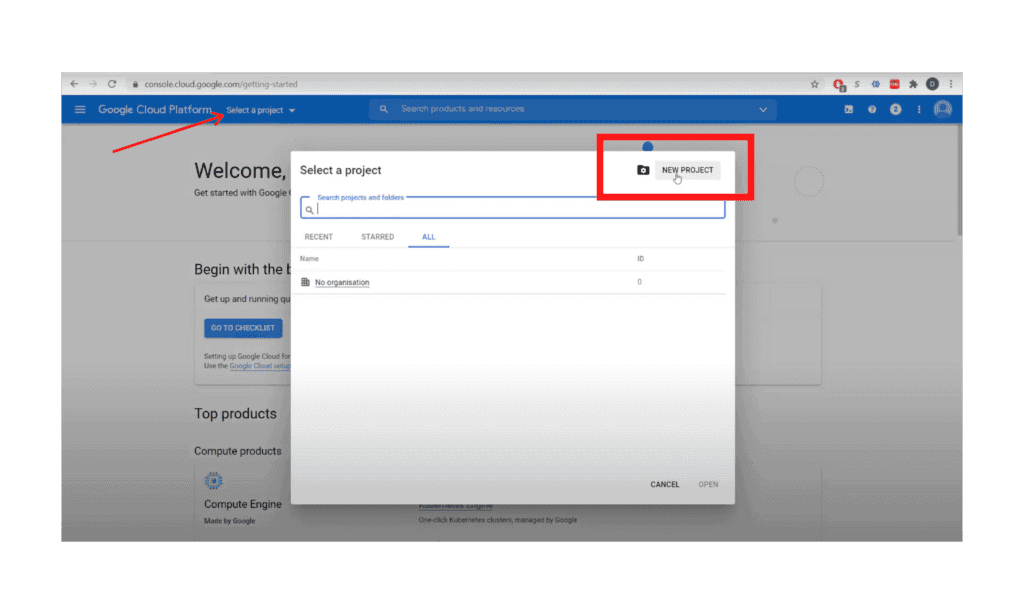
2a. Create a Project. 

2b. From “Select a Project” dropdown, click “New Project”

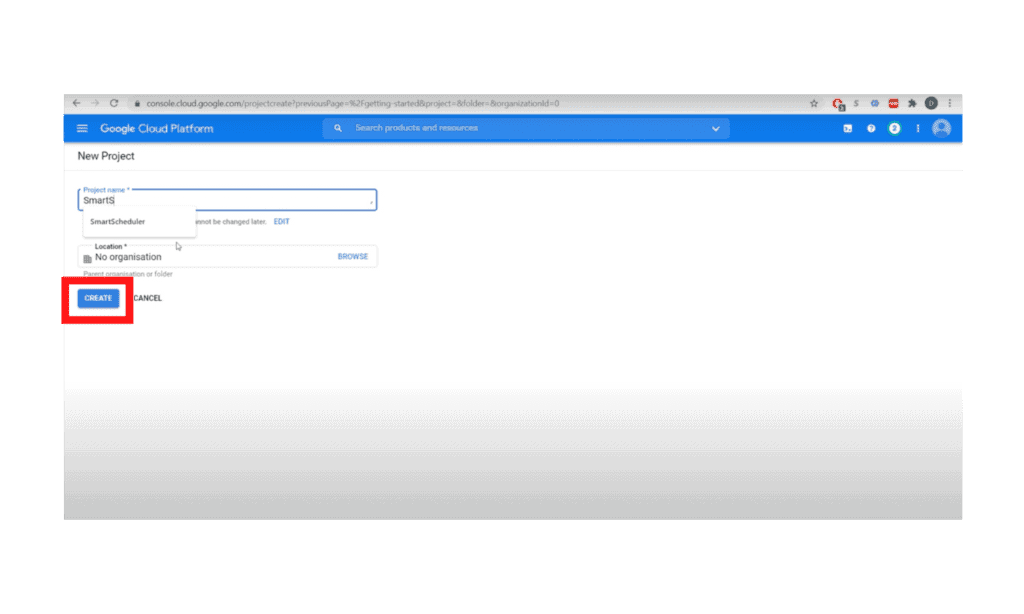
2c. Name it “SmartScheduler,” click “Create”

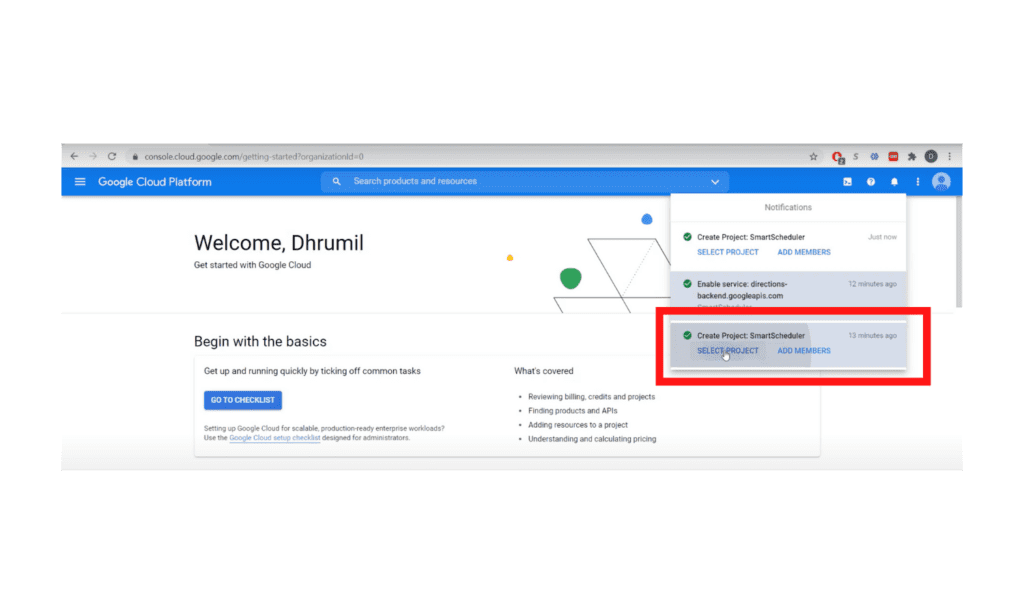
2d. Wait for the project to be created, then select the project from “Notifications”

Step 3:

3a. Then select your recently created project from the “Select a Project” list

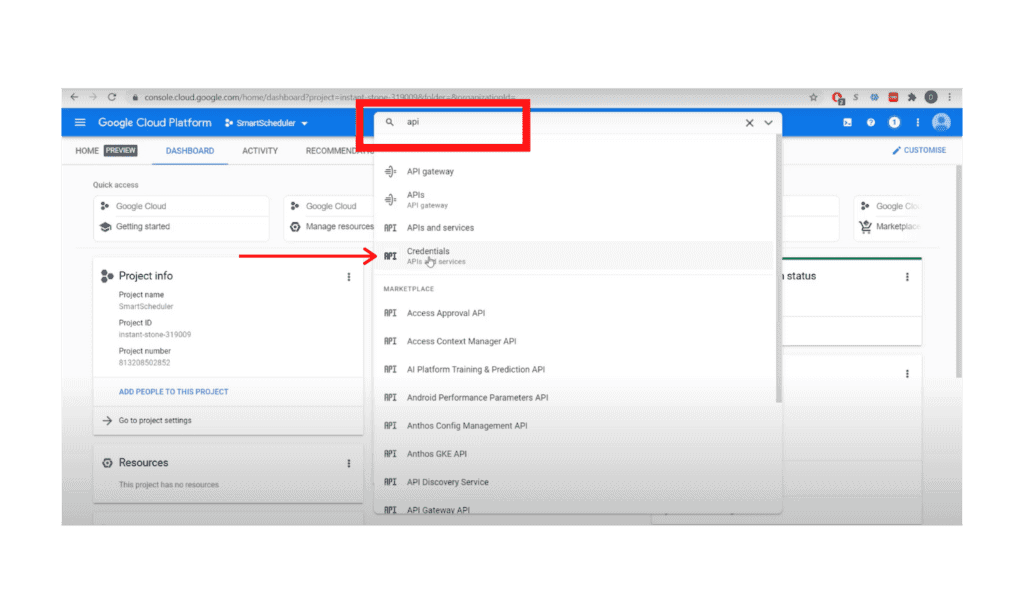
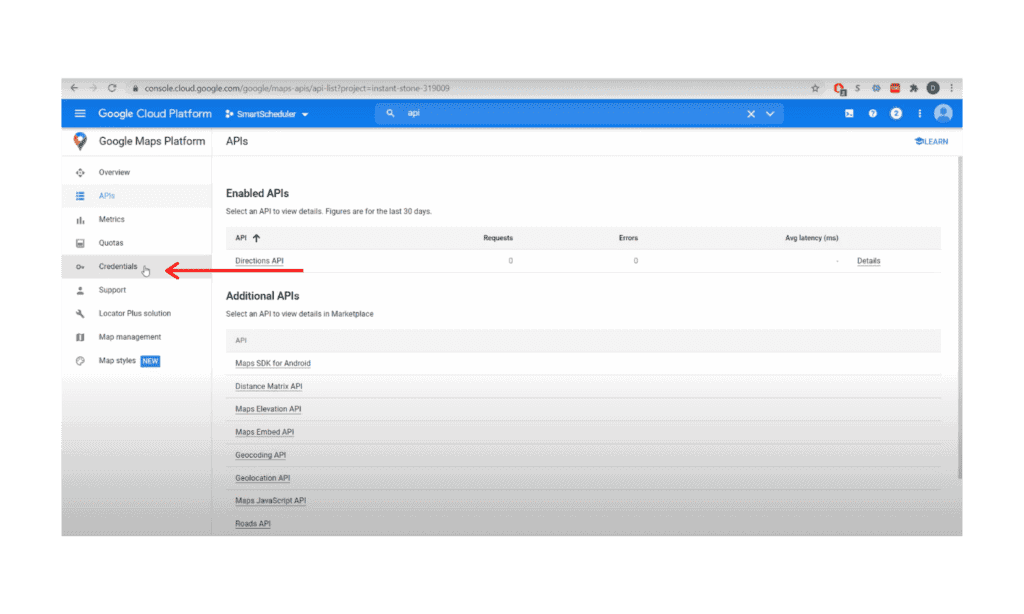
3b. Search for “API” and click on “Credentials”

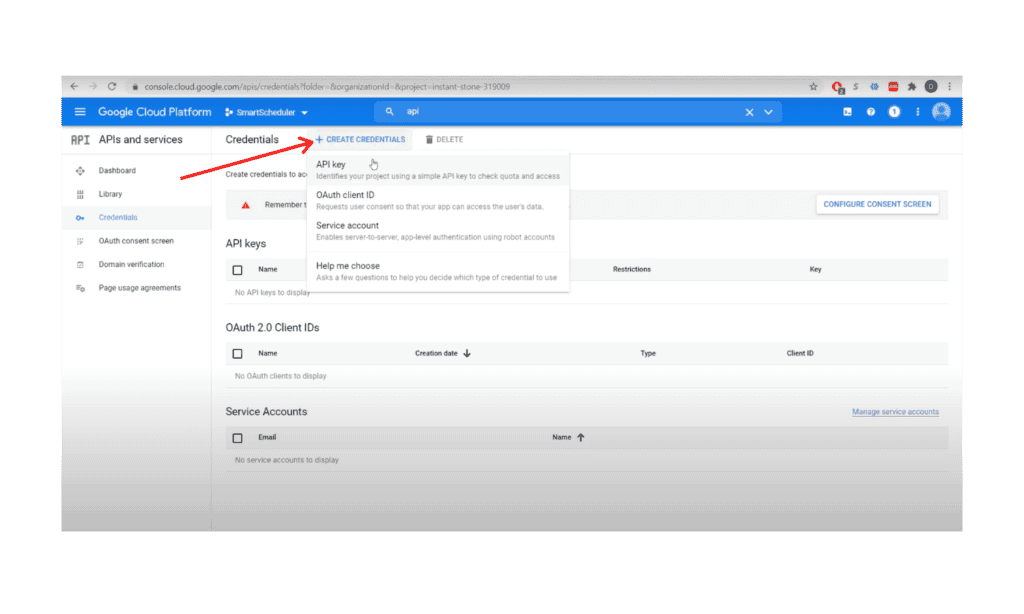
3c. In Credentials, Click on “+ New Credential” and Create API Key

3d. Then close the API Key window

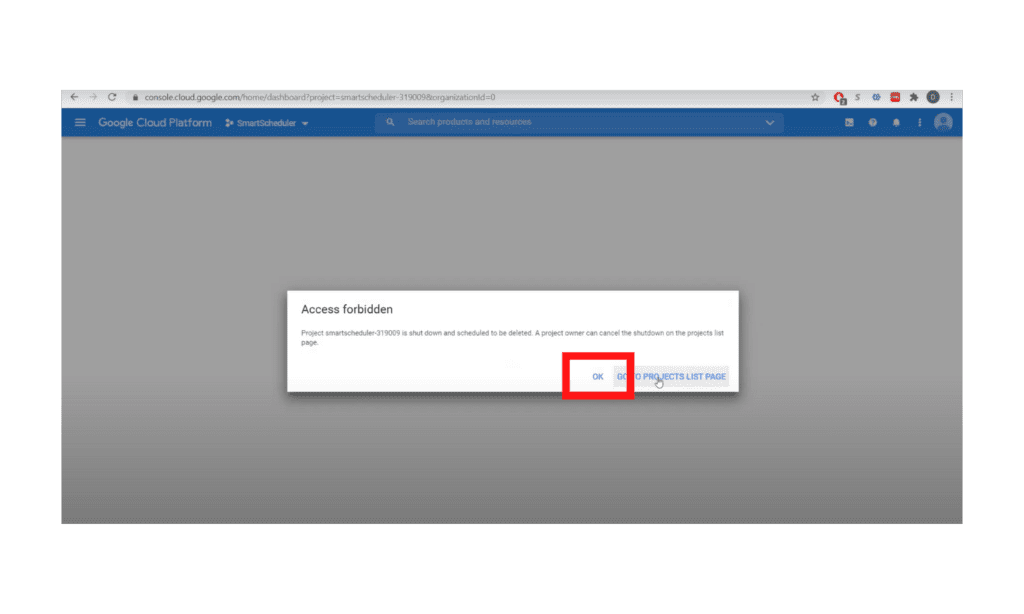
 3e. *click OK if you see Access Forbidden message

Step 4:

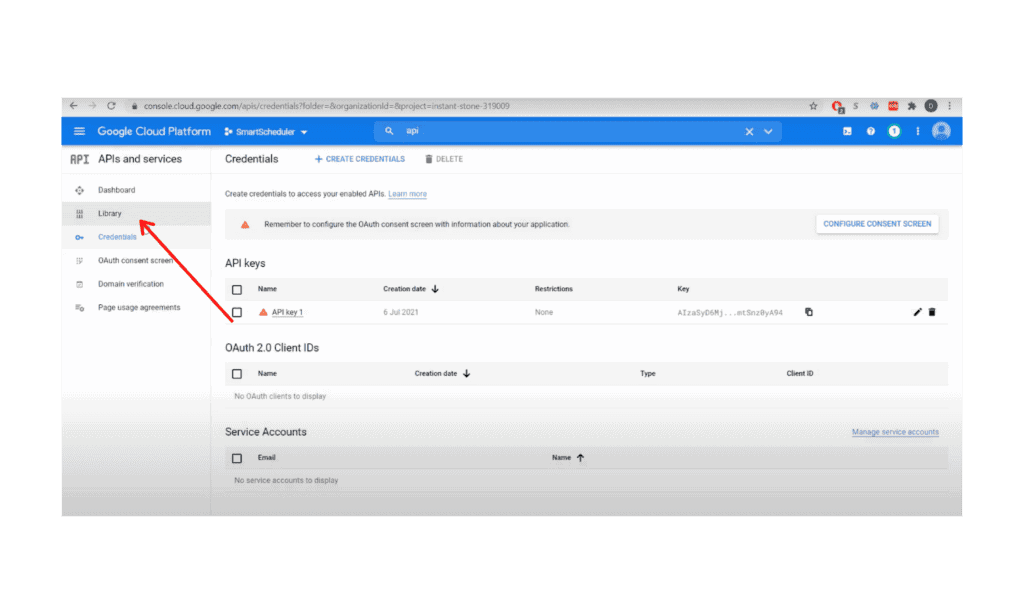
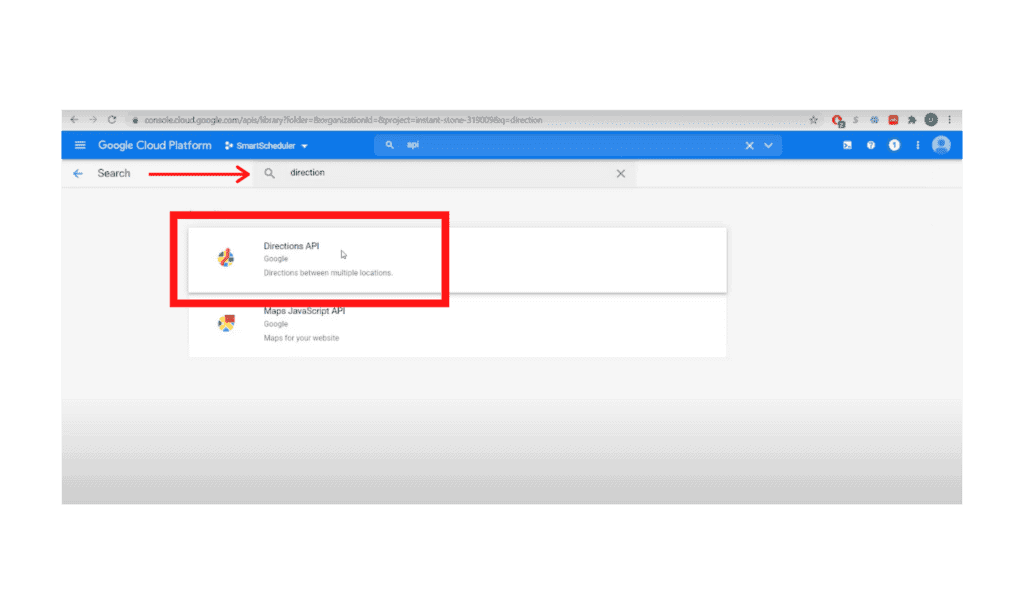
4a. Go to the Library 

4b. Search for “Direction”

4c. Click “Directions API” and Enable

Step 5:

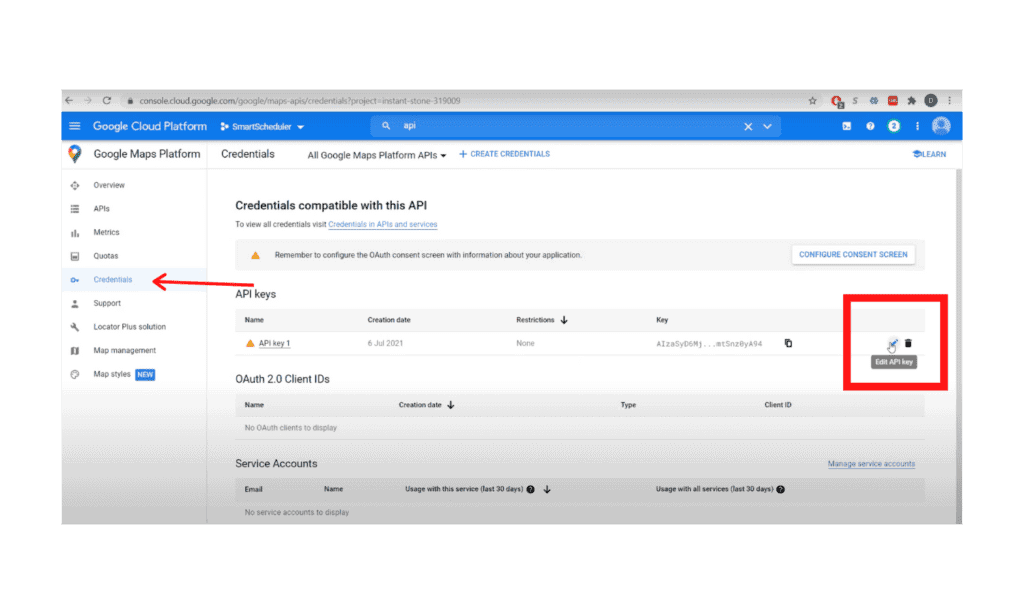
5a. Go to Credentials

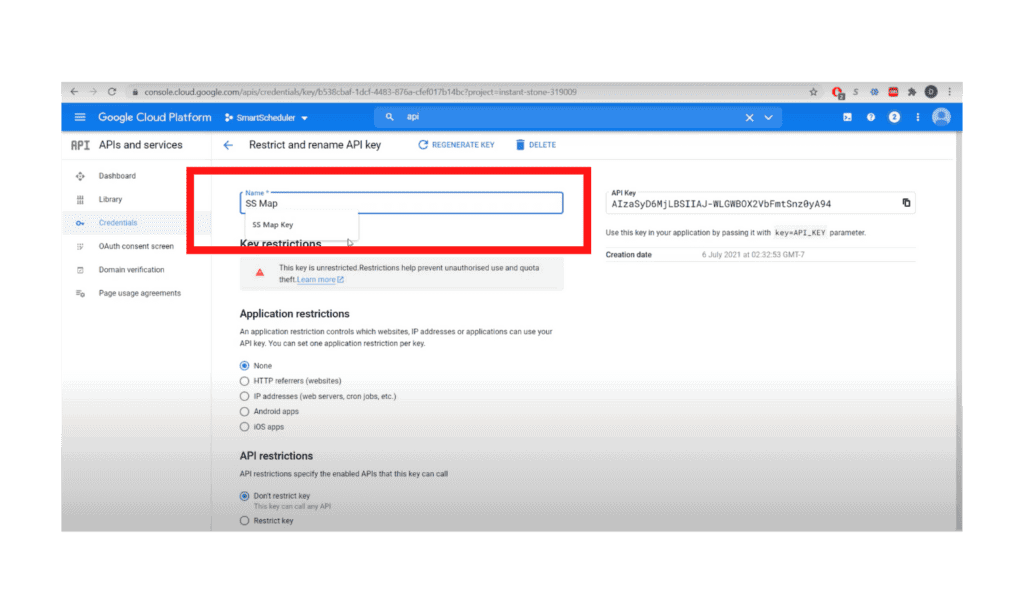
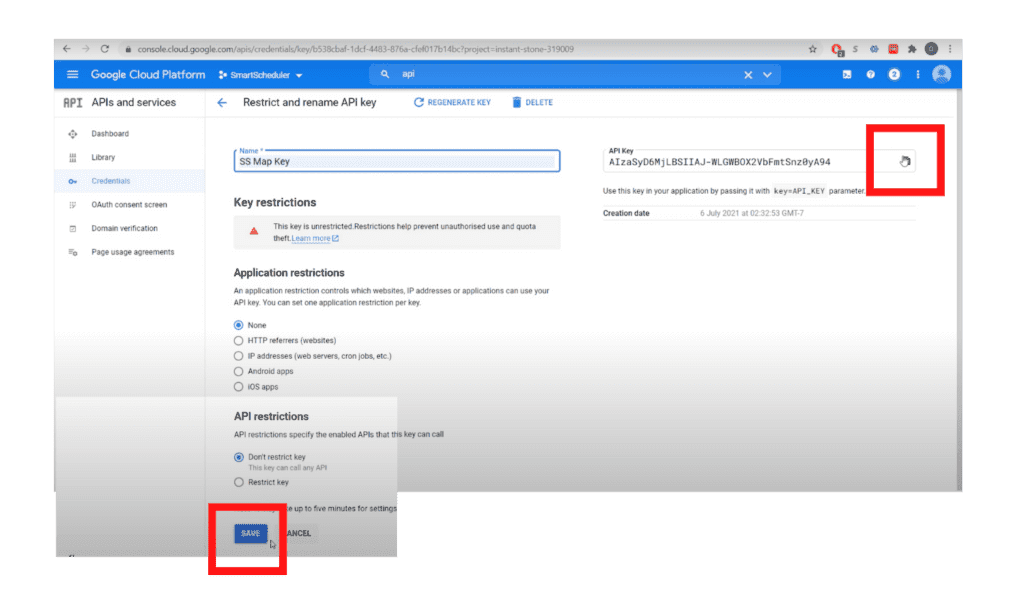
5b. Select edit, then rename API name to”SS Map Key”

5c. Copy key and click Save

End

For additional documentation, please see the Using API Keys article from Google


Other questions? Give us a call at (888) 207-4111 or contact us.

Contact Us


SmartScheduler™

from

zoho smartscheduler

Free Guide to Zoho CRM Implementation

Free Guide to Zoho CRM Implementation

In this info-packed guide, you’ll find a full spectrum of our advice from the point of researching a new Zoho CRM implementation, through planning and selecting a vendor, all the way through to implementation support options.

ZBrains has been building end-to-end solutions using Zoho since 2012, and today we’re one of Zoho’s top Premium Partners. Now you can get our advice for free!

Request our comprehensive guide to CRM implementations!