Need Zoho information or help due to COVID-19? Let us know.

Search results for : zoho app

Zoho CRM Last Activity Field

Last Activity Time in Zoho CRM: Understanding Its Significance

If you’re like a lot of other Zoho CRM users, you’re using the application to track sales agent activity and customer interactions throughout your sales process. The information captured by the Last Activity Time in Zoho CRM helps you assess whether or not your deals and customer relationships are headed in the right direction. In this article you’ll learn exactly what this field is. You’ll see where it can be accessed. We also share the types of activities and updates recorded as Last Activity Time.  

So, what is Last Activity time in Zoho CRM? 

Each time changes are made on a record, Last Activity Time is there to track it. This includes activities ranging from adding notes or closing a task, to sending emails or editing fields. Everything tracked here can be used in reporting. An example might be a report on activity recency for your accounts in a certain region or for a specific sales person. Having the data available from the Last Activity Time field is the key to answering questions just like that. 


Curious about Zoho CRM’s Last Activity Time reporting?

This is a great question! Firstly, you’ll find that there are several key benefits to reporting on Last Activity Time that support your sales team, including:

  • CRM user sitting at a tablet computerCapacity Planning for Sales Agents; you may notice that a record owner has many records that haven’t been touched in awhile, but activity is high, perhaps they require some help, or it’s time to grow your sales team.
  • Gain Insight Into Cross-Sell Opportunities; you can segment your customers using RFM Scoring (Recency Frequency Monetary feature) or Account Score with Last Activity Time. This will help you identify and prioritize direct outreach to accounts who haven’t purchased in a while. 
  • Enhance Your Customer’s Experience; with Last Activity Time you can quickly identify customers that need engagement. Anticipate their needs by calling or outreaching to them before they contact you.
  • Better Business Through Reporting; looking to prioritize the best use of your valuable data, but need help to get your reporting up and running? Contact ZBrains.

If you’re taking notes, the Last Activity time in Zoho CRM is viewable in all modules with the exception of the Activities module. This means that you can use this field as a filter to do tasks like creating a filtered segment in your Leads module, or do the same in Accounts to see quickly how many accounts may need an outreach. 

To use this field in Reports, you’ll find it is available for Leads, Contacts, Accounts, and Deals; and the questions you can answer are more or less limitless when your good data is put to use in Reports!


Which Activities and Updates will record as Last Activity Time?

Learn the nine primary ways that Last Activity Time is recorded inZoho CRM. It is helpful to know this information to understand the reporting or any filtered lists you reference. For example, bulk actions like restoring accounts could skew your report if you are looking for recent activities on a set of records. You may not see the results you are looking for if you are looking for data on completed Tasks in Last Activity Time (they’re not tracked here!).

  1. When you edit fields in a record.
  2. When you add new Activities, or update Activities such as Tasks, Events, and Calls.
  3. Adding a new Note or editing a Note will record.
  4. Sending Emails to Leads and Contacts in Zoho CRM will update this field.
  5. Last Activity Time is recorded when you change the Owner of a record.
  6. Adding Deals and Contacts under an Account will record it.
  7. Deleting or restoring a record, whether individually or in bulk.
  8. When you add or delete a record, it will record this field. One caveat here is, this does not include when you delete a record associated with the parent record. 
  9. Closing a Task will record; however, this does not apply to Events.  After the End Date, Events are automatically moved to closed activities.

How are you going to harness the data captured by Last Activity Time in Zoho CRM? 

Whether you’re questioning how to get the most out of your CRM data or looking to make improvements to your sales dashboards and reporting capabilities, the ZBrains team of Premium Partner Consultants  is here to help. Don’t hesitate to let us know how we can help with your digital business transformation along any step of the way from implementation and customization to consulting. Contact us any time!

Zoho Adds Even More Value with Free Remotely Suite

Zoho Remotely is free until July 2020

zoho remotely

In times of crisis, Zoho really seems to have their finger on the pulse of their customers.  They know well that many of their customers are SMBs.  And by that logic, the coronavirus pandemic likely affects a great number of them.  So, Zoho did what it does best: it added even more value to their customers’ experience with the Emergency Subscription Assistance Program (ESAP).  ESAP allows customers (still, as of this writing) to apply for Zoho licensing forgiveness if their organizations include 25 or fewer users.

But, obviously, not every organization is going to fall into that category, and some are still needing assistance.  To that end, Zoho has made an entire suite of their products free to use through the end of June 2020.  That suite, called Remotely, is made of apps already in the Zoho One suite, but which are designed specifically for remote collaboration.  And, in a time where many now work from home by default, what could be better?

Remotely includes these Zoho apps:

  1. Projects, for collaboration on team projects.
  2. Sprints, specific to remote teams collaborating on software sprints.
  3. Cliq, for sending instant chat messages to colleagues across your organization.
  4. Meeting, for virtual meetings with groups–for sales, support, or otherwise.
  5. Assist, for remote one-on-one support sessions (including mouse control options) with clients.
  6. Lens, similar to Assist but accesses a client’s smartphone’s camera to identify physical (non-software) problems.
  7. Show, for putting together presentations for clients.
  8. Showtime, for giving training content to your clients.
  9. Workdrive, Writer, and Sheet, similar to Google Drive, Google Docs, and Google Sheets, except integrated with your Zoho environment–great for storing files related to your clients or projects.

zoho remotely

Chances are your business needs more software than just Zoho Remotely to achieve success.  For example, you’ll notice the suite is noticeably lacking the CRM, help desk, finance platforms, etc.  But, if you would benefit from using even one of these apps in the Remotely suite, it could be worth a look.  You may end up using a combination of a la carte apps plus the Remotely suite.  Or, even Zoho CRM Plus and the Zoho Remotely suite.

If you aren’t sure what to do, let us know when you contact us.

Who benefits most from Zoho Remotely?

Aside from the obvious–that the suite is geared towards teams who work remotely–it seems Zoho Remotely is designed for teams in specific industries, too.  This makes more sense if you consider Remotely has existed in Zoho’s library since long before the recent pandemic.  In fact, Remotely has been around since 2019.

While many of the apps included in Zoho Remotely truly are general-purpose, others are quite specific.  The more general apps include:

  • Projects
  • Cliq
  • Meeting
  • Show
  • Workdrive, Writer, and Sheet

zoho remotely

Projects is a good app for any team needing to collaborate on a project that requires multiple steps or dependencies.  Cliq is Zoho’s equivalent of Slack, making it a great intra-office communication tool.  Meeting is similar to Zoom, meaning virtual conferences are on the table.  Show is like PowerPoint or Google Slides.  Similarly, Workdrive, Writer, and Sheet are similar to their Google Apps counterparts: Drive, Docs, and Sheets, which many businesses already use today.  With the possible exception of Projects, one could argue nearly any organization could benefit from using this combination of apps.

So, what about the more specific apps not included here?

More industry-specific apps in Remotely include:

  • Sprints
  • Assist
  • Lens
  • Showtime

Zoho Sprints is geared towards software development sprints; so, tech companies developing programs or apps would find it useful.  It isn’t uncommon for companies like this to employ a remote workforce anyway, so this app’s inclusion in the suite makes sense.

Zoho Assist is similar to Zoho Meet, except it’s used for one-on-one support sessions rather than team meetings.  It gives the presenter the ability to control a guest’s mouse (with their permission, of course), making it great for technical support cases.  Again, this sort of work is usually done remotely anyway.

zoho remotely

Zoho Lens is somewhat similar to Zoho Assist above, what with its device-controlling attributes.  However, Lens gives the meeting originator access to a participant’s smartphone camera, allowing them to see whatever the camera sees.  This is useful when diagnosing certain mechanical problems–or others where a visual display is important.  Again, this would necessarily be remote work, as the only alternative would be to bring an additional person to the work site.

zoho remotely

Zoho Showtime is like PowerPoint, or Google Slides, except it’s specifically made for showing training content.  In it, you can not only show special training videos, but also administer quizzes and track engagement.  As with the other aforementioned apps, this is necessarily a remote job.  The next-best thing would be to get your staff into a classroom, which is hardly ever feasible in the best of times–and especially not in today’s climate of perpetual social distancing.

Little confusing?  You’ve got power in your corner

Times are difficult enough these days, and while Zoho means well to add another software choice to its arsenal, some may not have the time to really sit down and analyze whether using it would be a good idea.  (Choosing the wrong software and/or provider seems to be a popular reason system implementations fail, when they do.)

If that sounds like you, just let us know and we’ll be happy to analyze your situation for you, then let you know if you’d benefit from using Remotely.  You don’t have to take a big chance on something like this; leave it to a team of experienced Zoho consultants to lend a hand and put you back in the Zoho power seat.


zoho for enterprise businesses

Zoho’s Evolution: Empowering Enterprises, Forging Partnerships

Zoho Corporation is looking to revamp its image as it grows, adding more partners who service larger businesses.  Historically, Zoho has been known as an inexpensive software option, especially useful for smaller businesses.  However, when enterprise-level customers do come knocking, they’re frequently impressed.

Zoho has done just fine by gathering up smaller businesses, making the relationships “sticky” with suites of apps like Zoho One, and growing with (until recently) hardly any US advertising.  But, Zoho is showing Salesforce isn’t the only game in town for larger businesses.

So, what does this mean for Zoho Corporation, for you (whether part of a small business or a larger one), and for us as Zoho consultants?

No matter what, Zoho still wants to help you

Businesspeople shouldn’t look at this move by Zoho as an eschewing of the company’s roots.  Rather, smaller businesses make up the vast majority of the global market.  And, chances are larger businesses have even more connections to smaller businesses that Zoho can use to its advantage–namely for referrals.  So, no, Zoho won’t likely turn into a one-dimensional company from this move.

zoho for enterprise businesses

Is it better to be big, or small?

The question remains: Is Zoho still better suited for larger businesses, or is it better for smaller ones?  Zoho purposefully paints with a very broad brush, offering software packages suited for both larger and smaller enterprises, with pricing plans to match.

The answer is it doesn’t really matter, and it all depends on your preference–as always.

Zoho purposefully gears themselves towards smaller organizations.  

Their competitive price points make the barrier to entry very low.  As well, Zoho’s plasticity makes it easy for some businesses to turn on an app and start using it in production right away.  And, suites like Zoho One or Zoho CRM Plus provide a whole system of apps for less than their constituent parts combined.  Recent additions like Zoho Remotely and the Emergency Subscription Assistance Program (ESAP) ease small business pains related to working from home, or from the recent COVID-19 outbreak.

zoho for enterprise businesses

Zoho Corporation clearly values their SMB clients greatly.  However, they expect some companies to grow larger as a natural function of their success.

Zoho’s customizability makes it a perfect choice for enterprise-level companies.

Anyone can turn on Zoho CRM and start tracking lead data.  However, many Zoho apps boast a slew of features specific to automating workflow and simplifying processes for large departments.  (Take blueprint, for example, available in Zoho CRM and Zoho Desk too.)  Many Zoho apps can communicate with each other.  Others can also integrate with third-party apps like QuickBooks Desktop.  Furthermore, Zoho’s platform-as-a-service, Zoho Creator, puts it on par with Salesforce by allowing for creating custom apps and connecting with Zoho CRM.

zoho for enterprise businesses

Clearly Zoho has designed their apps with both small and large companies in mind.  Some businesses may have growth plans that don’t include Zoho.  And, for some, that is to be expected, a natural part of growth.  But, Zoho purposefully designs software to last, and includes “sticky” apps that companies won’t want to stop using after starting to use them!  So, even if some companies actually plan not to use Zoho forever, they sometimes find their plans change due to their users benefiting greatly from using the software.  Again, this is a natural part of growth as a company.

What does this push to enterprise businesses mean for us as Zoho consultants?

As Zoho consultants, our job hasn’t changed.  No matter the size of your business, our job remains to devise the best Zoho solution for you given your business goals.  We’ve done this for one-man shows and we’ve done it for companies with hundreds of users.

If Zoho begins to attract more large companies, however, Zoho Corporation will likely begin expanding upon newer apps like MarketingHub. They’ll also probably offer more industry-specific solutions, and improve upon Zoho Creator.  Zoho will probably release those improvements to larger and smaller companies alike.  And this, in turn, makes our job that much easier, as it makes Zoho that much easier to sell.

And, whether Zoho adds functionality to Zoho Creator itself or creates new apps specific to industries like field services, construction, or manufacturing, larger companies have everything to gain.

How Zoho Helps SMBs in Crisis

Navigating Crisis: Small Business Survival Amidst COVID-19

zoho coronavirus help

Unlock Zoho’s Full Potential: The Perfect Software & Partner

Even perpetual doomsayers likely could not have predicted the wave of confusion–and businesses forced to close–in the wake of the coronavirus pandemic.

Whether your business was forced to transition to a work-from-home model, or you lost business due to the COVID-19 pandemic, or you were simply forced to shut your doors, chances are the virus has affected you in some way.

And, whether or not you even use Zoho software, you’re probably looking for guidance to power it through this troubling time.

Fortunately, Zoho software was practically built for situations like these, even if you didn’t know it already.

How Zoho software positions itself to help businesses

zoho coronavirus help

Zoho is well-known for being an inexpensive business software option.  And, unfortunately, this lends it a bad rap among some circles.  It’s widely known that highly-priced products are seen as more valuable than lower-priced ones, even if that isn’t actually the case.  And, in this case, it couldn’t be further from the truth.

For example, despite Salesforce being a household name, Zoho packs about 95% of the features of Salesforce.  Furthermore, any small gaps can usually be filled by Zoho’s platform-as-a-service, Zoho Creator.  But, the difference in price between Zoho and Salesforce is anything but small.

Zoho’s flagship offering, Zoho One, goes for $45/user/month.*  And, that gives you nearly every app (40+) in Zoho’s arsenal. *Pricing updated June 2021

Compare that with Salesforce’s enterprise-level solution, which comes in at $150/user/month–and that’s just for the CRM!  Add extra apps and the recurring price only rises. Businesses who have switched from Salesforce to Zoho know all too well about these differences in costs.

Zoho’s Emergency Subscription Assistance Program (ESAP)

zoho coronavirus help

Zoho already prices itself very competitively.  But, the recent coronavirus pandemic has caused Zoho Corporation to take swift action to help its customers even more.  Zoho knows that many of its clientele are small businesses.  And, because of the size of these businesses, statistically the coronavirus outbreak affects them most.  Zoho wants to do everything it can to help keep these customers in business.  After all, small these businesses have been a key to Zoho’s success thus far.  Furthermore, the loss of their business software wouldn’t just mean these companies would move to another platform.  Rather, it could mean the end for some, if not most of them.

For these reasons, Zoho has launched the Emergency Subscription Assistance Program.  This allows any severely affected Zoho customer with 25 or fewer employees to apply for completely free licensing for up to three months.  While ESAP requires an application to receive help, its availability to begin with shows Zoho’s great empathy for its customers.

How about working from home?  Zoho covers you there with Remotely, too.

zoho coronavirus help

Even if coronavirus hasn’t sidelined you completely, you’ve likely shifted at least some operations from an external office to a home office.  Any business can use Zoho CRM Plus if they need a whole suite of apps, but what happens if a business needs to be a little more collaborative than CRM Plus allows?

Zoho Corporation has made their Remotely suite completely free to use through July 1, 2020.  This move will surely help businesses through these troubling times.  Remotely contains these apps, which focus on collaboration or general communication between team members:

  1. Zoho Cliq
  2. Zoho Meeting
  3. Zoho ShowTime
  4. Zoho WorkDrive
  5. Zoho Projects
  6. Zoho Sprints
  7. Zoho Assist
  8. Zoho Lens
  9. Zoho Writer
  10. Zoho Sheet
  11. Zoho Show

What can ZBrains do?

As always, we maintain our full staff of Zoho certified consultants and developers completely on-site to help with any Zoho project.  No matter what you need–from consulting, training, integration, or a custom ERP app–we have the tools to help.

zoho coronavirus help

We don’t often recommend jumping into action, especially if we haven’t already analyzed your Zoho software and helped plan your next moves.  However, if you don’t have time to spare, doing something–anything–may be miles better than doing nothing.  Let us know exactly how you’d like to engage with a Zoho partner, and we’ll do our very best to make that a reality.

As a small business ourselves, we know what you’re going through, and we care about you.  Above all else, stay safe, and we hope to collaborate with you soon.

Should you use Zoho Finance or FieldTech?

Should you use Zoho Finance, or FieldTech?

Like with all things Zoho, your software choice should depend on your business.

fieldtech zoho finance

There’s a new player in town when it comes to the ERP side of Zoho.  We released FieldTech formally several months ago, and while a good number of companies enjoy its benefits today, it isn’t always clear what the differences are between FieldTech and the Zoho Finance platform at large.  So, we present this post in hopes of clearing that up.

When should you use Zoho Finance?

If your accounting and ERP needs are relatively simple–or if you don’t use inventory–you may not need anything more than Zoho Finance.  Finance works well for professional services companies, as well as distributors with very light or uncomplicated inventory.  For anything a little more complex, Zoho’s custom functions can transmit information between the modules of different apps, and workflow automation can speed up slow processes and prevent certain tasks from falling through the cracks.

fieldtech zoho finance

And, for anything more complex than that, businesses can use Zoho Creator to built separate apps to then connect to the Finance platform.  These apps give these businesses ways to manipulate their data that Zoho Finance could not do on its own.

The drawback to simply building your own Zoho Creator ERP apps is doing so takes lots of time: Someone has to architect your solution given the way you do business, then actually build and implement it for you.  This is one of the chief reasons we built FieldTech: to address this potential need of many companies who wouldn’t be satisfied with just Zoho Finance, and who don’t have the time to develop their very own apps.

When should you use FieldTech?

Zoho Finance’s familiar array of features suits the needs of a lot of businesses.  But, the suite tends to alienate several other kinds of companies inadvertently:

fieldtech zoho finance

These kinds of companies depend on certain features available in ERP software that Zoho Finance doesn’t provide, or only partially provides.  Things like:

  1. Complex, mobile quote creation on-the-fly (with a CPQ tool)
  2. Assisted scheduling of appointments or work orders
  3. Work order management, including tracking time, materials used, and equipment
  4. Production (manufacturing) order management
  5. Advanced inventory management, including MRP and an RMA module
  6. Job costing, factoring in both labor and materials
  7. Commission calculation for salespeople

And, this isn’t to say those companies with these needs can’t use Zoho Finance at all!  They can, and often do–sometimes to their detriment–for years.

The point is Zoho Finance isn’t always enough for these companies.

The reason for FieldTech’s existence

As Zoho consultants, we get calls about the shortcomings of many Zoho apps, including the Finance suite, on a daily basis.  Zoho Corporation is notorious for improving apps and releasing features at a breakneck pace, but this doesn’t usually translate into accommodating the sort of requests we were getting (and still get) from the kinds of companies mentioned before.

Eventually we wisened up to the fact that our customers needed more than what standard Zoho apps could reasonably offer, at the pace it was needed.  So, over the course of years, we built the FieldTech platform to help address these needs.

Is it possible to use both suites at once?

fieldtech zoho finance

As Zoho Finance isn’t always enough for some businesses, and FieldTech can supplement the Finance suite’s features,  many companies find it useful to use both platforms.  The FieldTech suite has many standard integrations with Zoho Books, Zoho Inventory, Zoho CRM, and even Zoho Desk.

Could we cut out Zoho Finance entirely?

From time to time, people ask us why they need Zoho Finance at all, if FieldTech works so well as a sort of Zoho ERP.  The answer is that Zoho Finance, in spite of its shortcomings, packs a lot of extremely useful accounting functions and third-party banking integrations.  We could develop these things for FieldTech too, but, except in very extreme cases, we’d be reinventing the wheel.  Better to let Zoho do what they do best.

Get the full Zoho Finance vs FieldTech Feature List

With this guide, you can easily compare the capabilities of each solution side by side and see how they stack up against each other. The feature list breaks down each category, making it easy to navigate and find the information you need. Don’t make a decision without knowing all the facts – get the full feature list today.

Contact us using this form and we’ll send you the full feature comparison list.

What is Zoho CRM

What is Zoho CRM?

What is Zoho CRM?

Manage sales activities, delight your customers, and set goals – all from onZoho Finance Suite Zoho Projects Zoho Desk Zoho SalesIQ Zoho Campaigns Zoho Survey …and many others. e central app

Person working in zoho crm

You have the business idea, and you have the drive.  Now, how do you handle your customers?

Maybe you started out writing notes manually, or using a spreadsheet.  But as your business has grown, you’ve realized that solution isn’t scalable… Salespeople’s notes fall through the cracks.  Customers wonder where you went.  And, even when everything happens on time, it all requires lots of different apps.  That means a lot of work, and a lot of cross-referencing data between programs.

You need something that works for you, instead of the other way around.

Enterprise players use a CRM to manage their customers.  Zoho provides this enterprise-level solution at a fraction of the cost. 

So why not you, too?

Why do you need CRM?

It seems like a pretty surface-level question.  Philosophically, you’d want to use a CRM to maintain your customers’ expectations of you and your business.  You may have basic standards like:

  • Replying to your customers’ emails or calling them back within one business day.
  • Making sure your clients, or even your prospects, know your business practices after meeting with you once.
  • Delivering proposals and other documents to your clients in an organized, timely way.

But, behind the scenes, the CRM does much more than this.  Your salespeople use CRM to track and organize their own sales activities.  By doing this, they can keep on task – so above the surface, your customer sees your business running like a well-oiled machine.

[caption id="attachment_4021" align="aligncenter" width="600"]zoho crm CRM is truly an invaluable tool: it can help you grow your business directly (through sales growth) and indirectly (through giving you insights about how to improve things).[/caption]

Specifically, your sales team can use CRM to:

  1. Prioritize their daily tasks
  2. Send emails and even proposals directly to prospects
  3. Make phone calls
  4. Track their sales targets
  5. Plan any next activity for a customer (or any record in the CRM)

When your salespeople can do this, it’s easier for them to hit sales targets. And, when they don’t hit their targets, the CRM itself can help you figure out exactly why not. This means the CRM is truly an invaluable tool: it can help you grow your business directly (through sales growth) and indirectly (through giving you insights about how to improve things).

What sets Zoho CRM apart from so many others?

zoho crm logo

Especially today, CRMs are practically a dime a dozen.  And, conversely, big names like Salesforce loom large.  But, in the software game, those smaller players can be too niche or too limiting, and the Salesforces of the world can be too overwrought – and too expensive – for many.

Zoho’s CRM sets itself apart from its competition by making itself both extremely customizable and affordable.  That way, you don’t need to limit yourself by using something so niche – and, you don’t have to break the bank just to use a household name.

But, this CRM is far from just a customizable blank slate.  It includes loads of standard features designed to give your business a leg up from the very first sign-in.

Zoho CRM Sales Management Features

Lead Management

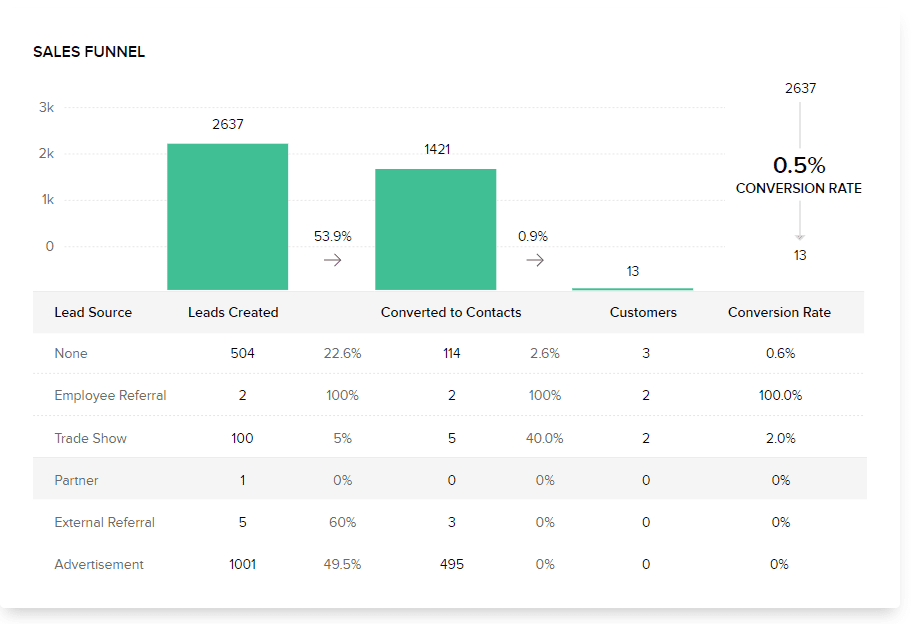
Lead Management Sales Funnel

This CRM helps with your leads in these ways before you’ve even contacted them, then continues helping as you nurture them.

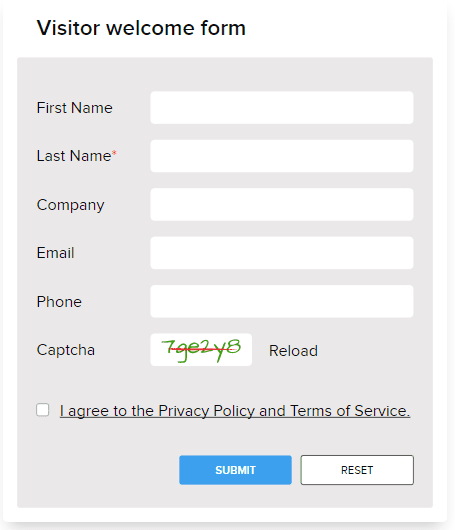
Zoho Webforms

  1. Zoho CRM webforms sync customer-submitted data from your website straight to your CRM.  No more copy + paste!
  2. Zia scans the web and enriches your customers’ data, which gives you insights about how you may want to steer the conversation.
  3. Use built-in Zoho lead scoring rules to give certain leads priority over others.
  4. Distribute leads automatically with lead assignment rules.
  5. Nurture your leads by sending targeted email campaigns right from the CRM.
  6. Convert your leads into Deals, a kind of record that denotes closing probability.
  7. Integrate with Google Ads to see which Ads campaigns brought you the most leads.
  8. Use Zoho’s CRM Analytics to gauge how your sales efforts helped bring in business, and where they fell short.

Deal Management

zoho crm deal management

Once you have prospects who have entered into your sales process or pipeline, you’ll need to prioritize them.  Zoho makes this easier to do than ever with these deal management features.

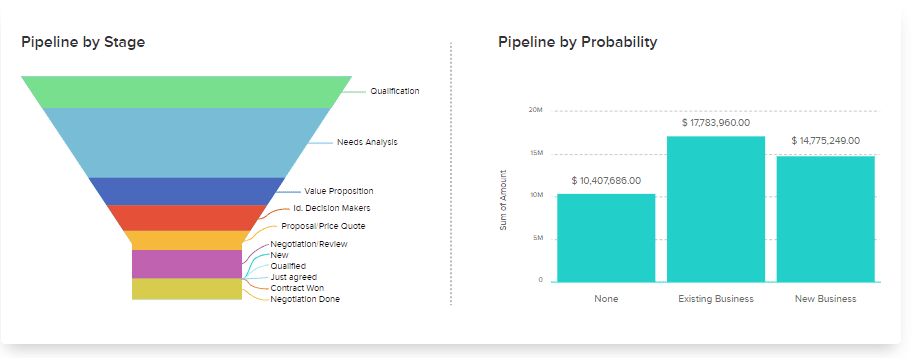
  1. Use standard and custom deal views to see a snapshot of all your deals, and sort them by stage, probability, sales rep, and more.
  2. Zia can assign deal closing prediction scores to your deals, giving you an extra advantage.
  3. Zoho CRM’s deal stage tracker gives you an easy way to see just where each deal is in your sales process.
  4. Create and send quotes or estimates for your prospects right from the Deals module.

Account & Contact Management

zoho account and contact management

Once a prospect becomes one of your client, their journey with you doesn’t end!  You can use this CRM to keep them delighted even after they buy – which could lead to future sales or even referrals.

  1. Integrate with Zoho Desk to view any customer’s support ticket history with you.
  2. Use your CRM’s email analytics to determine the best day and time to send mass emails.
  3. Integrate with many different VOIP providers for a unified communication experience.
  4. Track all transactions related to any account inside CRM.
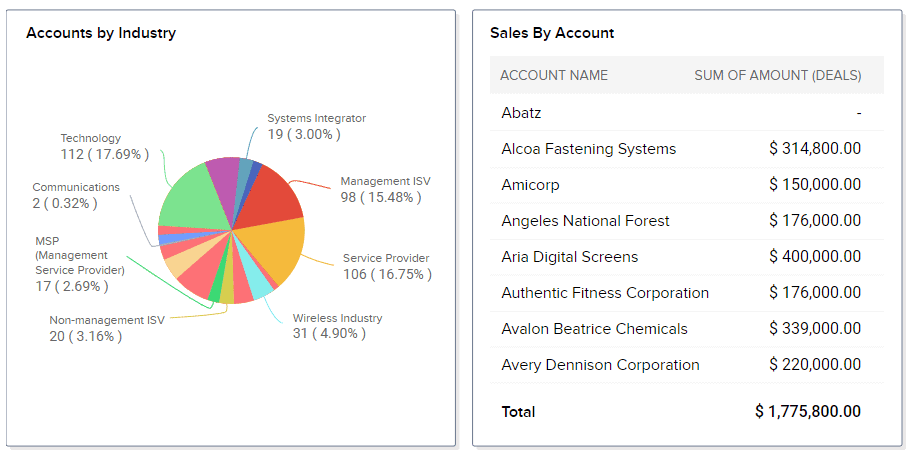
  5. Use the native Analytics to determine which industries you best serve, and which accounts are your most profitable.

Workflow Automation & Custom Functions

zoho crm workflow automations

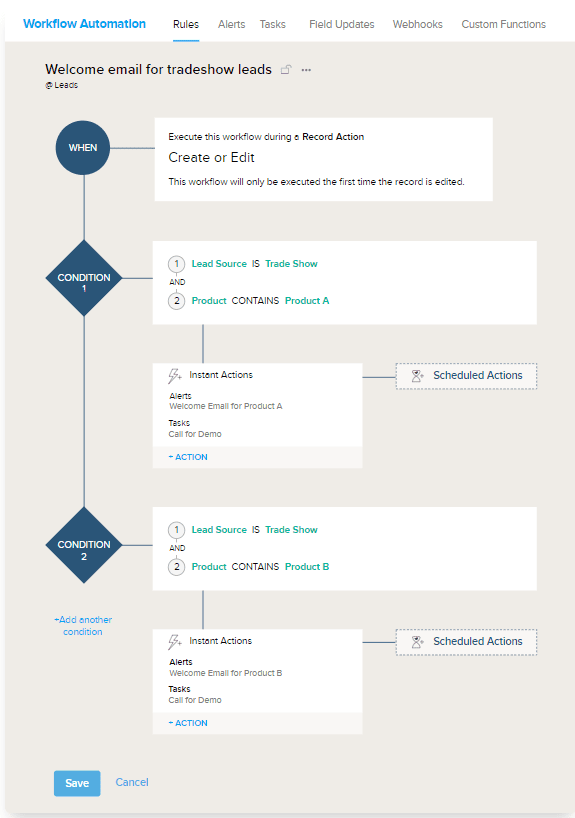
A salesperson’s life is filled with doing a lot of the same things over and over again, from calling and emailing to setting meetings to sending proposals… While the subjects of the activities likely won’t be repetitive, the actions themselves can be, and this leads to activities falling through the cracks.  Zoho CRM workflow automation not only helps prevent this, but speeds up a salesperson’s rote daily activities.

  1. Workflow automation tells the CRM to perform a task or tasks automatically when certain conditions are met.
  2. Workflow analytics can help you gauge how well email templates perform when sent by a workflow rule you’ve set up.
  3. Webhooks can integrate third-party apps to the CRM modules of your choice.
  4. Custom functions can send information between Zoho apps or modules in a single Zoho app when certain conditions are met.  Zoho provides a gallery of custom functions that you can use to get started.

Keep your team on task with Zoho CRM Blueprint

Zoho Blueprint

By now, you know this CRM provides an array of great tools to help a sales team better organize themselves.  But, sometimes all that data in front of someone’s face can have the opposite effect.  What do you do when a salesperson has too much in front of them and doesn’t know what to do?

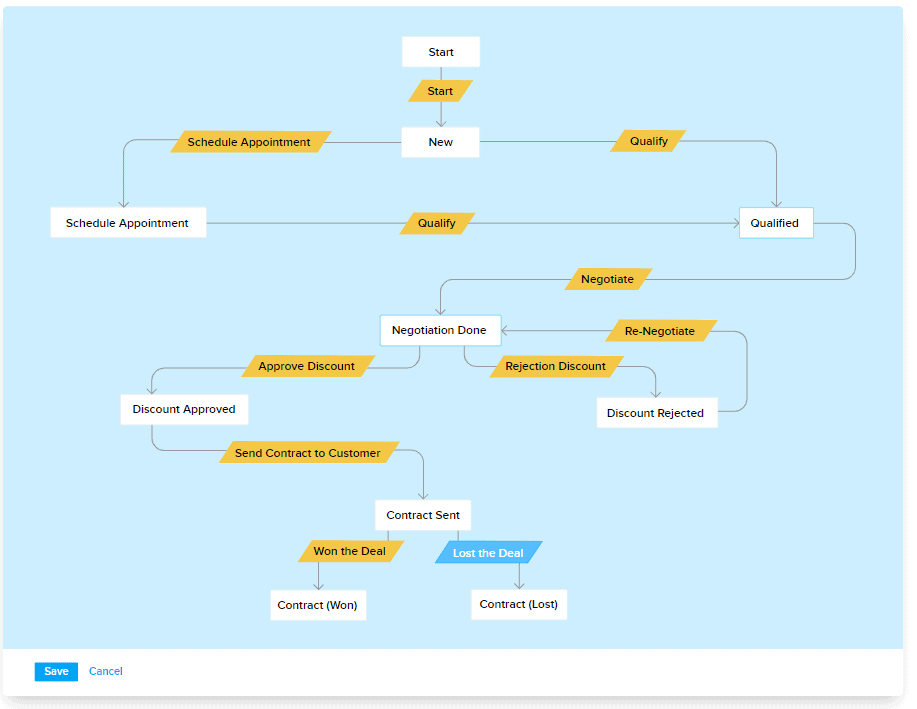
Zoho CRM blueprint allows administrators to simplify the life of a salesperson by boiling down their options and allowing them to select their next action for any given record.  This allows you to determine that every record has a next action, and it keeps the salesperson focused.

Blueprint is easy to work with: it uses a visual, drag-and-drop editor, and allows for programming workflow automation to go along with record actions right on the spot.

Zoho CRM Integrations

CRM is a fine tool on its own, but you can bolster its power considerably by connecting it to other business apps.  This includes not just other Zoho apps, but even third-party apps you may use, like QuickBooks Desktop, or many others.  For third-party integrations, you can sync (essentially, copy+paste) real records from one platform to another, eliminating the need for double-entry entirely in some cases.

CRM Integration options with Zoho

You can connect these apps to Zoho CRM to view related records in CRM related lists.

  1. Zoho Finance Suite
  2. Zoho Projects
  3. Zoho Desk
  4. Zoho SalesIQ
  5. Zoho Campaigns
  6. Zoho Survey

…and many others.  These CRM related lists allow for real-time record viewing in the CRM.  However, using related lists is not the same as syncing records directly to your CRM.

Integrating these apps with your CRM allows for a true 360-degree view of your customers, from invoices to be paid to campaigns interacted with to help desk tickets open to surveys completed.  Make assessments on-the-fly, or weigh each metric in custom reports for custom lead or account scoring.  The choice is yours.

Zoho CRM Pricing & Review: Which edition is best?

Selecting a CRM software

If Zoho’s CRM were available on its own, that would be fine.  But, part of what makes Zoho so great is its accompanying software suite.  This CRM only reaches its full potential when bundled with other Zoho apps that connect to it natively.  For example, you can connect your CRM to Desk, Zoho Books, Zoho Inventory, and even custom Zoho Creator ERP software.

To help customers who need more than just Zoho’s CRM, Zoho has preconfigured bundles of apps to choose from, including Zoho CRM Plus and Zoho One.  These packages serve different needs and come in at different prices.  While packaging Zoho this way ultimately helps the user, it can confuse those who don’t know the ins and outs of the different packages.

Zoho CRM (Enterprise edition): $50/user/mo * 10 users = $500/mo

Zoho CRM Plus (Enterprise edition by default): $69/user/mo * 10 users = $690/mo

  • Comes with CRM, Campaigns, Desk, SalesIQ, Social, Projects, Survey, and Analytics.
  • Equivalent to getting CRM Enterprise @ $500/mo and the other apps at Enterprise Level@ $834/mo combined

Zoho One (Enterprise edition by default): $45/user/mo * 10 users = $450/mo

  • Comes with 45+ different Zoho apps
  • Equivalent to getting Zoho CRM for less than retail cost

Why doesn’t everyone just pick Zoho One?

Zoho one logo

Zoho One seems to be the obvious choice.  It includes Zoho CRM as well as over 40 others.  The reason some users choose to absorb a higher cost instead of picking Zoho One is Zoho One’s caveat on their licensing agreement.  Zoho Corporation offers Zoho One at such reduced pricing because they mandate that all of a company’s W-2 employees must have a software license in order to be in accordance with this agreement.

For smaller companies, where all employees likely need a Zoho One license, this is a great deal.  It provides an extremely low cost of entry, and increases the likelihood that you will continue using the software as your company grows.

For larger companies, it’s the opposite.  Some companies just have too many employees who wouldn’t need the software, so Zoho One isn’t feasible for them.

And, for companies that use lots of contractors or other non-employees?  You’re in luck.  The agreement only specifies use by W-2 employees, so if you employ lots of contractors, you can purchase just enough licenses for your W-2s, or give licenses to your contractors.  The choice is yours.

The ultimate takeaway from Zoho CRM?

When using the app at its fullest potential, Zoho CRM allows for much more than just contact management.  It gives salespeople a place to plan their daily activities.  It allows for a 360-degree view of any customer, lead, or account.  Sales Managers will have the tools they need to keep tabs on their sales team members.  And, company administrators will have everything they need to ensure everyone follows the processes put in place.

zoho software

In short, Zoho CRM gives you everything you need to run the sales side of your business the way it was meant to be run.  The question is what is the best way?  The best way for you might be different than the best way for any other company.

Companies like us, as Zoho consultants, show their value by sitting down with our customers and getting to know them.  That way, we can come to a conclusion about the best way to implement Zoho CRM for your business.

Are you ready to get started with Zoho CRM?  Contact us today and we’ll sit down with you, too.

Zoho Desk

zoho desk logo

Unlock the Power of Zoho Desk for Your Customer Support

If you’re seeking a comprehensive customer service and support ticketing solution, look no further than Zoho Desk. This powerful platform is designed to streamline your support operations and enhance customer satisfaction. Let’s delve deeper into how Zoho Desk can transform your customer support.

  • Effortless Ticket Management: With Zoho Desk, managing support tickets has never been easier. You can efficiently track, prioritize, and assign tickets to your support agents. Say goodbye to the chaos of manual ticket handling and embrace a more organized and efficient workflow.
  • Empower Your Agents: Zoho Desk empowers your support agents with all the tools they need to provide exceptional service. They can access detailed ticket blueprints, facilitating clear task assignments and reducing confusion. Communication between agents is seamless and private, ensuring swift issue resolution.
  • Measure Customer Success: To keep customers happy, you need insights into your support system’s performance. Zoho Desk provides a wealth of metrics, including response times, customer satisfaction ratings, and product-specific issue tracking. Stay ahead of potential problems and ensure your customers receive the support they deserve.

Who Can Benefit from Zoho Desk?

Numerous industries can benefit from Zoho Desk’s robust capabilities:

  • Manufacturing and Distribution: Streamline support requests for issues like defective products and shipping errors. Integrate Zoho Desk with Zoho Finance and ERP software for a tailored solution.

  • Technology and SaaS Companies: Handle IT issues and reduce common problem-related tickets with the self-service knowledge base. Empower your customers to find solutions independently.

Custom Functions, Marketplace Extensions, and More

  • Custom Functions and Marketplace Extensions

Just like other Zoho apps, Zoho Desk offers the flexibility to write custom functions, enabling cross-platform workflow automation. Additionally, you can enhance functionality with third-party extensions, some of which are free.

  • Real-Time Analytics for Informed Decisions

Zoho Desk’s reporting capabilities provide valuable insights into your support operations. Track ticket statuses, resource utilization, service ratings, and more. Identify areas for improvement and share reports with your team.

  • Choosing the Right Edition

Zoho Desk offers three editions: Standard, Professional, and Enterprise. Each comes with its set of features to cater to your specific needs. Whether you need advanced features like approvals, telephony integration, or a multi-branded client portal, there’s an edition for you.

Affordable Pricing

Zoho Desk’s pricing is competitive, starting at just $20 per agent per month for the Standard edition. Professional and Enterprise editions offer even more value for your investment. If you’re already using Zoho One, you may have access to Zoho Desk as part of your subscription, making it a cost-effective choice.

The Ultimate Zoho Help Desk to Manage Your Support Cases

It’s often said that winning over a customer is the easy part; keeping that customer is the real challenge. , Keeping customers usually depends on making your customers happy not just once time – but, again and again. Zoho Desk is the customer service and support ticketing solution you’re looking for. Ask yourself:

When your customers have support issues, how do you deal with them? 

Are you slow to respond, or do you jump to attention quickly?

Do your response times – and what they mean for your business – keep you up at night?

You should never have to worry about support cases draining your business. Especially if you already use Zoho software like Zoho CRM!  Zoho Desk was designed just for you:

  • You can manage tickets
  • Actively keep tabs on your agents
  • Quickly gauge customer success levels
  • Easily identify and fix bottlenecks in your process – all from one powerful app
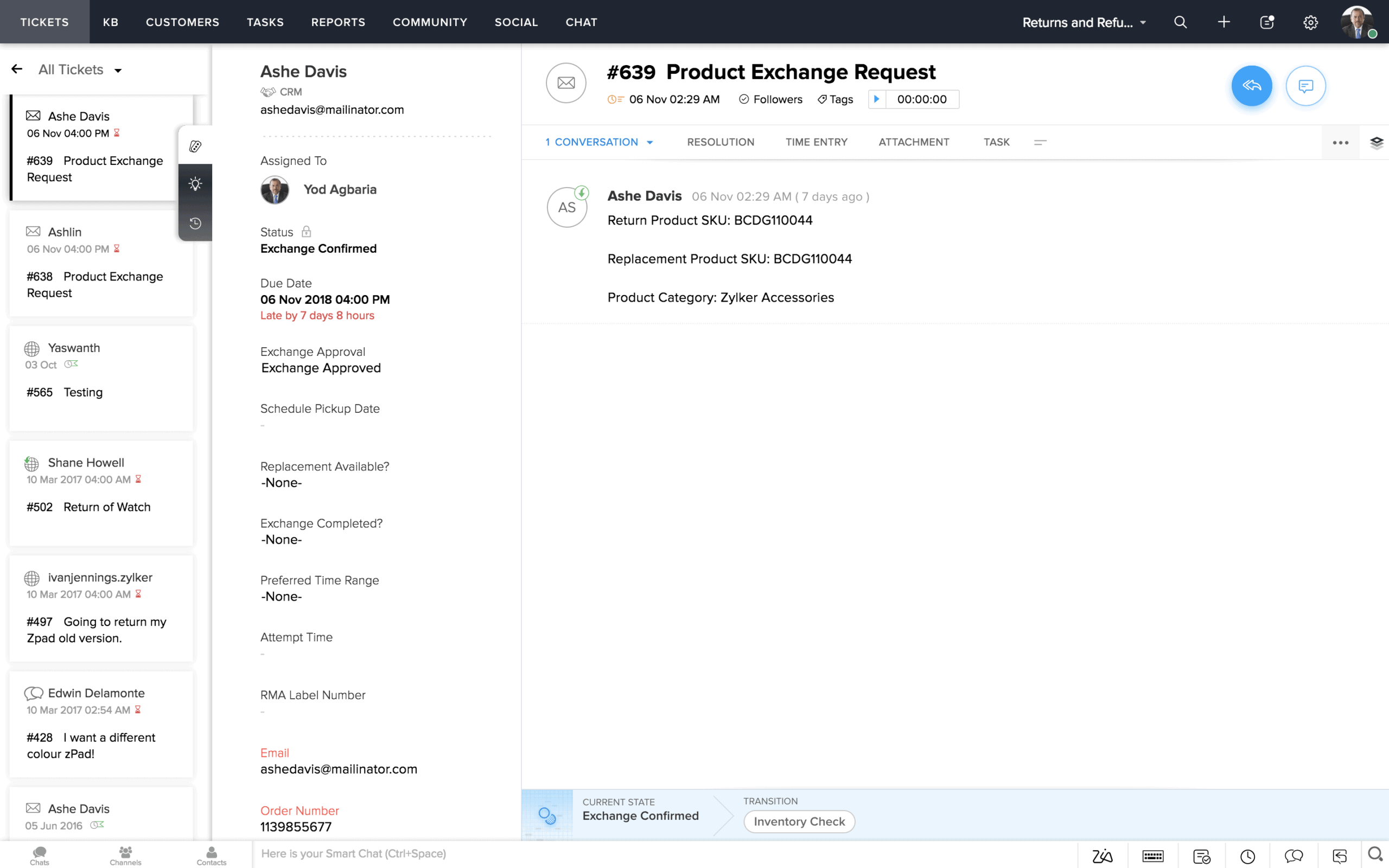
managing support cases screenshot

First, some common terms:

  1. Support agent: A regular Zoho Desk user
  2. Support administrator: Any admin-level support user, including the super admin
  3. Ticket: The equivalent of a Case record in Zoho CRM
  4. Solution: The answer to a client’s support question

How Zoho Desk Works

zoho desk customer portal

For the uninitiated, Zoho Desk works like many other help desk or customer service ticket apps.

First, customers submit their issues.

When a customer has an issue they’d like you to help solve, they might give a call to your general phone number, or send an email to your regular inbox.  This may seem intuitive, but it can hurt you if your volume of support requests is too high.

Alternatively, it can route support requests directly to a given department, or the proper support agent.

Your clients can email a dedicated support mailbox, or even call a dedicated support phone number. This separation of powers, so to speak, gives your support administrator the ability to route and oversee tickets as they arrive.  (In some cases, Zoho Desk can also parse the contents of tickets and assign them by itself.)

Then, your agents can begin to assist.

Once agents are assigned tickets, they can see exactly what they need to do by following a ticket blueprint that you can set up. This easily clears up confusion over who is doing what. Agents can communicate internally – privately – regarding tickets so all correspondence is properly linked.  And, administrators can send solutions to a knowledge base, which clients can access by logging into a special support portal.

You can view metrics to ensure customer success!

Finally, support administrators can view all sorts of metrics related to your support system.  This includes department-wide or agent-specific response times, customer satisfaction ratings, product-specific issues, and more.  In short, the Zoho service desk lets you solve current support issues and anticipates future issues.

Who can use Zoho Desk?

Many industries benefit greatly from having a help desk, and from having a Zoho Desk at the center.  Here are just a few:

  • Manufacturing or distribution companies sometimes have issues with returns due to defective products, errant shipments, and the like.  Zoho Desk helps those clients by giving them an easy way to submit requests.  Furthermore, Desk can plug into Zoho Finance apps, or even Zoho ERP software, giving you an even more custom-fit solution.
  • Clients of technology or SaaS companies usually have at least some IT issues that need solving. The application gives those clients a fine way to submit issues and gives them a knowledge base to serve as an FAQ.  This can eliminate the need for tickets related to very common problems.

Features of Zoho Desk

Zoho Desk is packed full of features, from support agent controls to admin controls – and even customer controls.  Note that this is not a comprehensive list!  If you’d like something more thorough before implementing Zoho Desk, let us know and we’ll organize a demo for you.

Multi-Channel Ticketing System

On a given day, you might receive tickets from several different sources.  Email, social media, phone, and live chat are just a few of these.  What if you have even more?  No matter what, the Zoho Help Desk allows for automatic sorting of tickets by channel and by department, so you can route them appropriately, prioritize them, and report on them.

Artificial Intelligence (AI) Capability

Sometimes, the simple act of identifying a customer’s issue and categorizing it before tending to it can eat up mounds of valuable time.  Zoho includes their artificial intelligence engine, Zia, inside Zoho Desk to do not only that but even answer customers’ questions for you automatically, via text or voice chat.

Customer Portal with a Knowledge Base
zoho desk customer portal

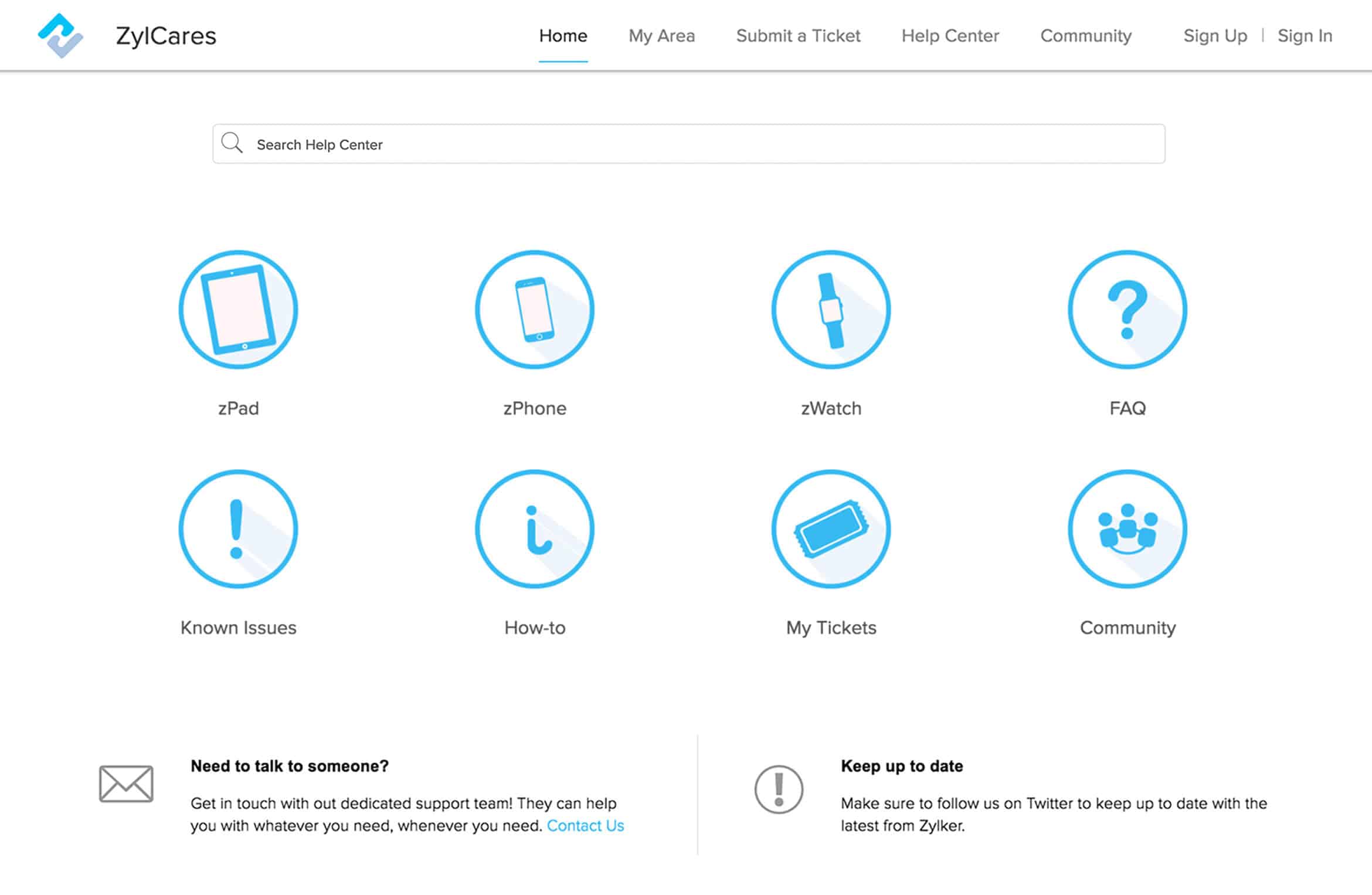
Zoho Desk puts more power into the hands of your customers with a self-service portal.  Once customers log into the portal, they can submit their tickets to you, or browse your knowledge base, which you can use as an FAQ center, for solutions to common questions.  You can populate your knowledge base directly with documented solutions from tickets, or by typing text articles – the choice is yours.

A Mobile App in the Hands of Agents

The Zoho Desk mobile app allows you to get instant notifications about the tickets you follow, including accounts and contacts. The full details of responses and internal comments are available here, too.

The app automatically organizes your tickets, prioritizing those that need your attention most. You have CRM customer information available within, as well, so you can reference those contact details and past interaction details.

Special Views, Text Snippets, and Private Comments

Both agents and administrators in your Zoho service desk can check open tickets by priority and by other views, which can be customized.

Desk support members can expedite their response times by using a snippets feature, which auto-inserts a piece of pre-written text like a merge field, for solutions that require telling many clients the same or similar information.  (You can even use this snippet feature to copy and paste entire solutions into ticket replies, as long as you’ve already recorded those solutions in your knowledge base.)

Private ticket comments, along with agent tagging, make sure that all related correspondence is tracked, and that other agents know when they’re being called upon to contribute to a discussion.  It’s all done in the name of speeding up your support interactions and reducing confusion.

Blueprint eliminates confusion about your support process
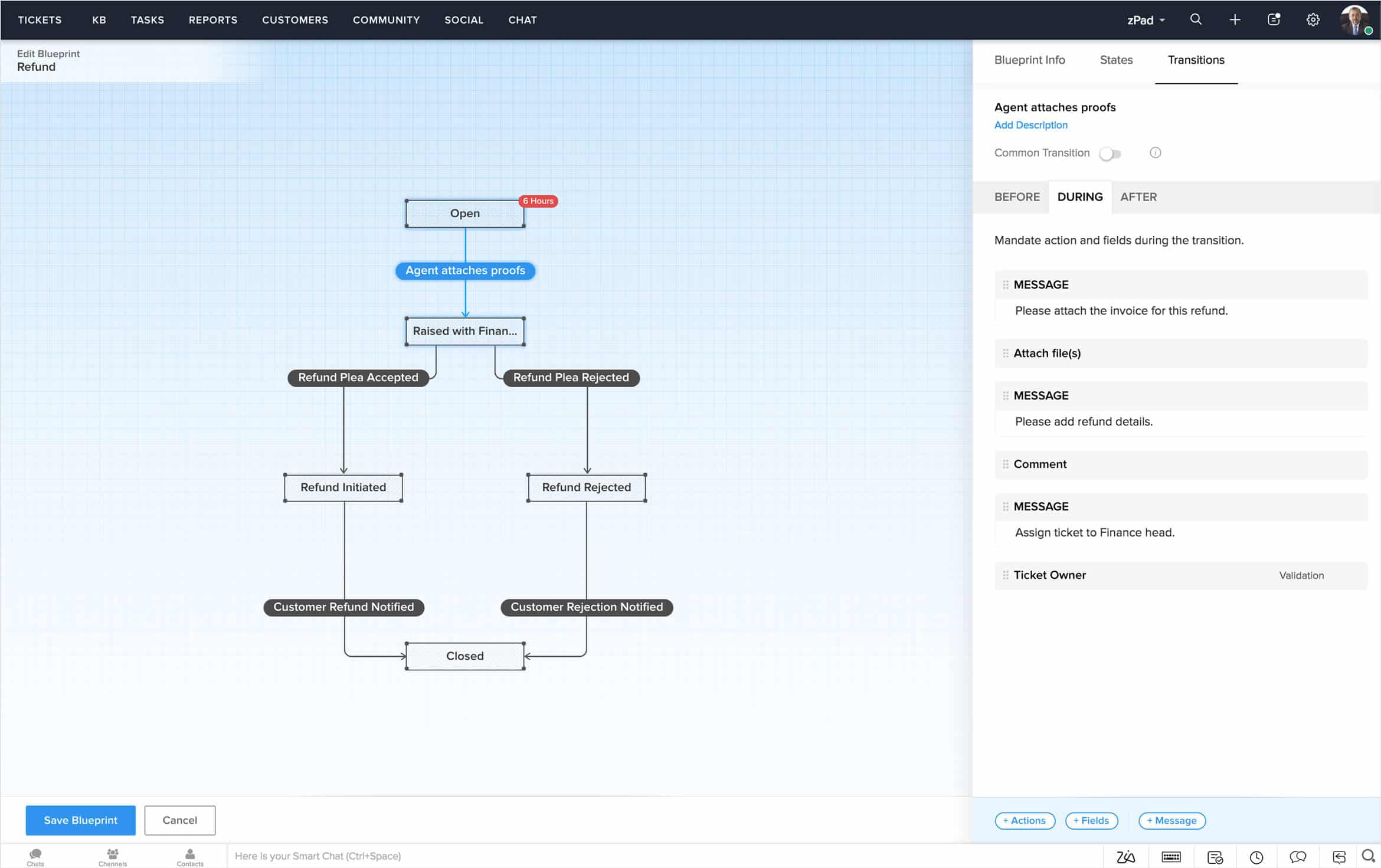
zoho desk blueprint layout

Have you ever wished there was a way to document your whole support process in a hierarchy tree so no one would ever get confused about what to do next? 

Zoho has anticipated that need and given us Blueprint.  Blueprint in Zoho Desk allows administrators to map any support process in the form of clickable buttons and associated actions.  These buttons appear inside tickets as choices that support agents can click to advance a ticket to another stage in your process; when selected, tickets are advanced, and Zoho Desk can perform other actions (such as emailing a client) automatically.

Zoho Service Desk uses custom functions and supports Marketplace extensions

Just as in Zoho CRM and Zoho Books, Zoho Desk provides administrators (or Zoho consultants) with the capability to create custom functions. These custom functions, which consist of programmed code, serve to initiate the transfer of data across various systems. In essence, custom functions act as cross-platform workflow automation tools. To illustrate their practical application within Zoho Desk, consider a scenario where custom functions can be employed: When a support agent opts for a Blueprint choice called “Ship New Item” to replace a damaged product, custom functions can be used to seamlessly generate a shipment within your Zoho Inventory app.

And, as with many other Zoho apps, Zoho Desk supports third-party extensions to help enhance the functionality of Desk.  Some of these extensions are premium, but many are available for free.

Zoho Desk’s Real-time Analytics
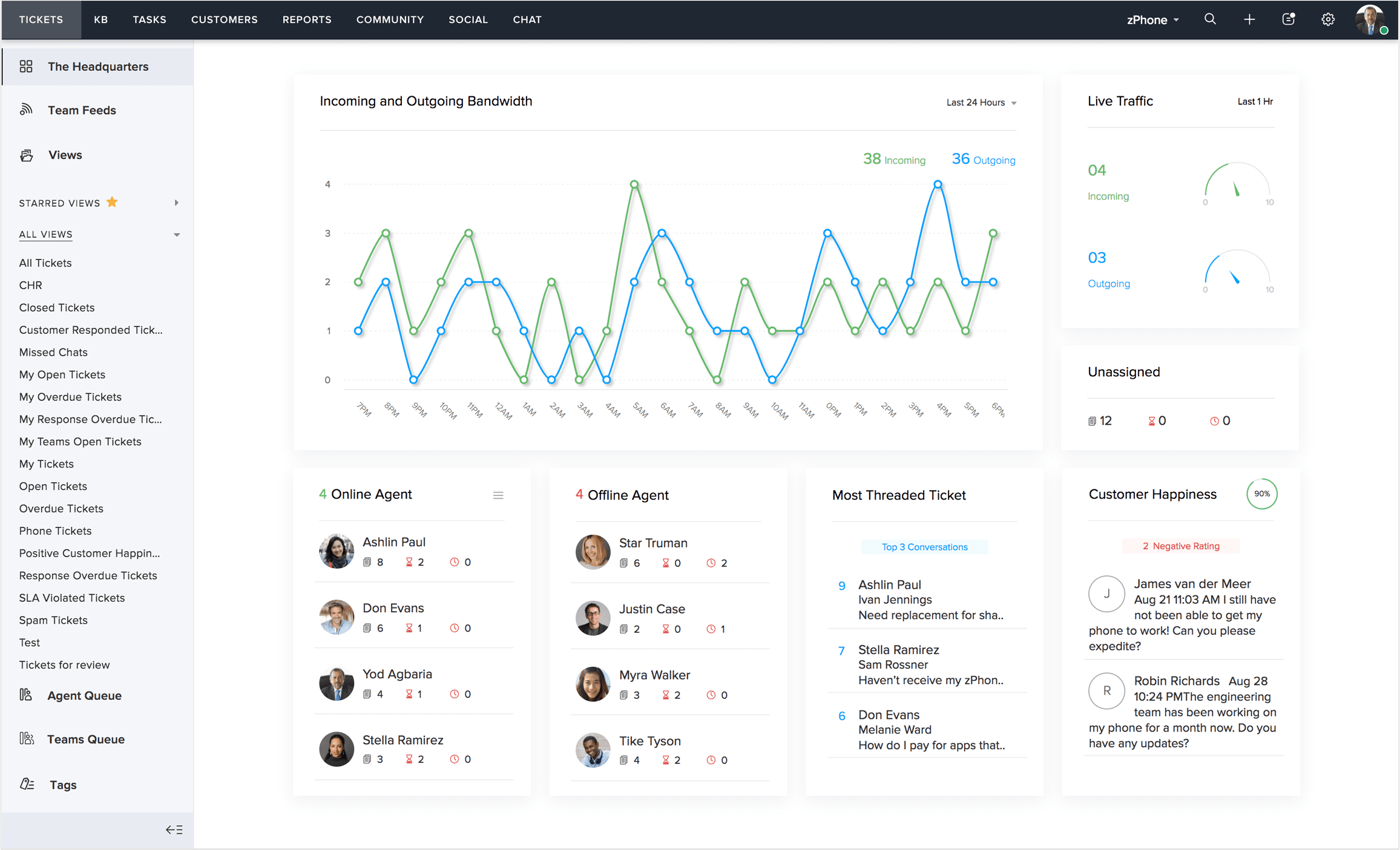
zoho desk support manager dashboard

Zoho loves equipping its apps with lots of valuable reporting capabilities, and the Zoho Help Desk is certainly no exception to this.  From just a few screens, you can:

  • Track all tickets and their statuses
  • Sort tickets by custom view or department
  • View resource utilization, service ratings, and SLA violations
  • See how many tickets your team answers per day
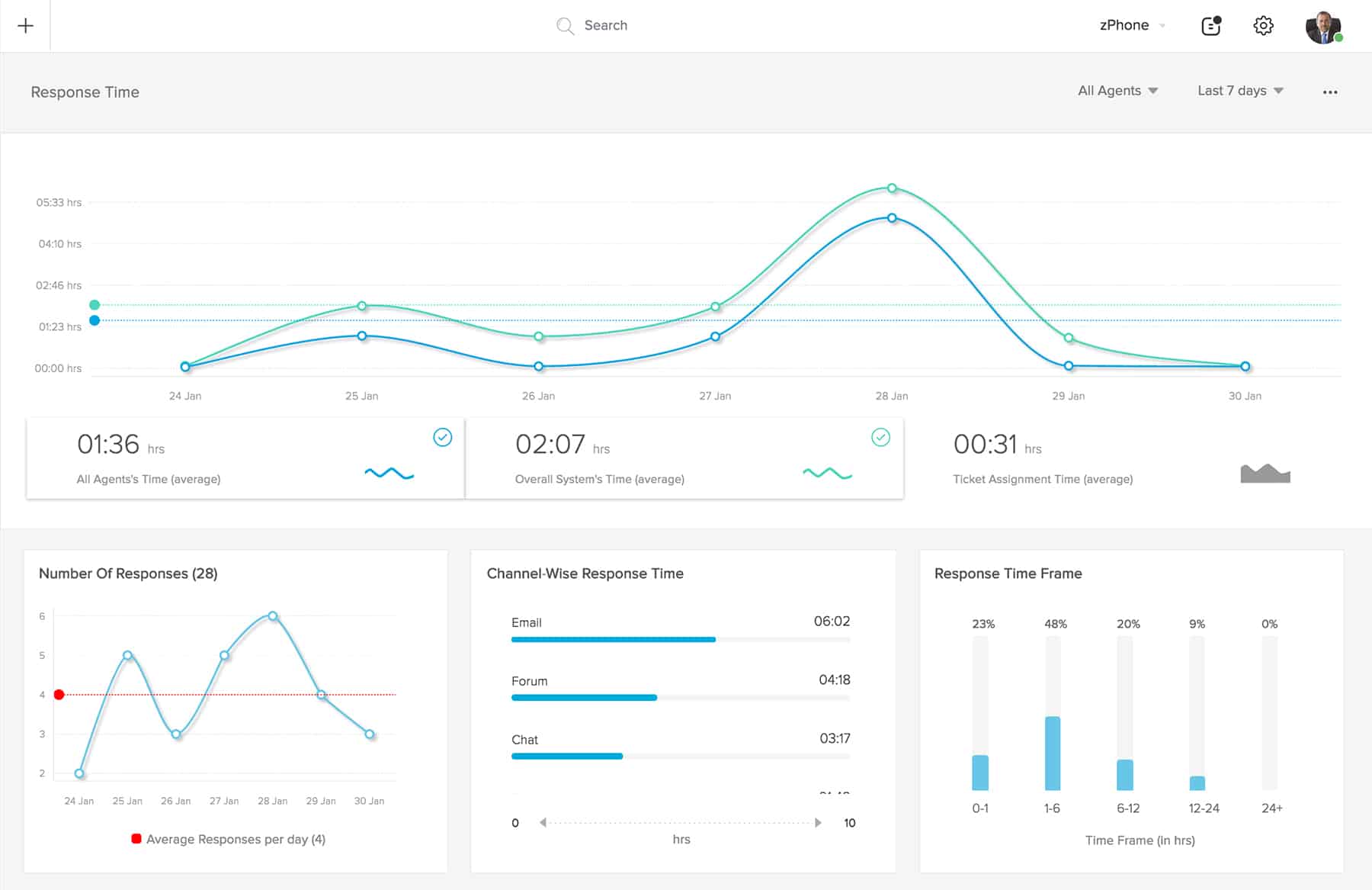
reporting capabilities by zoho

Using these reports in tandem allows for identifying areas where your processes can improve.  You can even share reports (Zoho Desk analytics) with employees outside Zoho Desk by using the Advanced Analytics integration.

Zoho Desk Review – all factors weighed, including pricing

To properly assess the value of Zoho Desk, even with all its features, you have to consider its cost, whether you choose to use it by itself (likely in tandem with Zoho CRM at the very least) or as part of a suite like CRM Plus or Zoho One.

The application comes in three editions, not including the free version.  Those are:

  1. Standard edition: $20/agent/month
  2. Professional edition: $35/agent/month
  3. Enterprise edition: $50/agent/month

(*Prices valid as of June 2021 when billed monthly)

Even the Standard edition includes many useful features, such as ticket emailing, customer happiness ratings, the ability to merge/split tickets, and the ability to add Light Agents (Zoho Desk agents with limited abilities).
desk icon

However, Professional includes more advanced features like approvals, agent collision detection, telephony integration, and the use of the Blueprint.

Enterprise gives you the most features: Everything in Professional, plus live chat capability (think SalesIQ for Zoho Desk), custom functions in workflow automation and Blueprint, ticket layout rules, and even a multi-branded client portal.

In many instances, choosing one edition over another comes down to the inclusion of a single feature you’ll need – and that’s normal.

However, if you’d like to use Zoho One, you won’t even need to think about which version you’d rather use.  This is because Zoho One includes the Enterprise edition!

Zoho One (Enterprise edition by default):

  • For all your employees: $45/user/month
  • For any number of employees if not all of them: $105/user/month

(*Prices valid as of June 2021 when billed monthly)

If all your employees would have a Zoho One license anyway, you’ll just get Zoho Desk for free, essentially.  However, Zoho One might still make sense for you – even if not all your employees would use the system.  (For Zoho licensing concerns or questions, please contact us.)

Get started on Zoho Desk

The desk is a very robust app, capable of helping your support department greatly.  But, with so many moving parts and steps, it can be hard to know exactly how to get it all to work for you.  That’s where the ZBrains expert consultants come in.

Let us know how you’d like to use Desk, and we’ll give you just what you need.  That could include:

  • Consulting – “What’s the best way I could be using Zoho Desk, given my business practices and procedures?”
  • Full implementation, from start to finish
  • Support, for training issues, bug fixes, and other help after you’ve implemented the Desk
  • Knowledge base and customer portal setup
  • Zoho Desk and Zoho CRM integration help

…or, anything else you can think of.  Contact us today and we’ll be happy to help you.

Connect with a Consultant

Zoho Sage Intacct Integration

Zoho Sage Intacct Integration Pricing

[easy-pricing-switch default_pricing_table_id="3979" default_title="Monthly" default_subtitle="" alternate_title="Yearly" alternate_subtitle="" alternate_pricing_table_id="3980" font_color="#ffffff" background_color="#3498db" border_color="#3498db"]

Schedule a call to get more info

Use the Zoho Sage Intacct integration to connect two sides of your business

zoho sage intacct integration

Nothing can sap your productivity like manually entering data from one system to another.  When using a system as complex as Sage Intacct, you can’t afford to waste time or resources on something as tedious as manual entry.  And, you don’t deserve to.  Instead, use the Sage Intacct integration with Zoho to save valuable time, and focus more on what you’re more passionate about: your business.

Sage Intacct integrations with Zoho reduce manual entry and mistakes

Rather than enter information once into two different systems, you can enter it just once, then sync the data to your system of choice.  This not only saves valuable time, but helps prevent human error that comes with manual data entry.

Sync these modules between Zoho and Sage Intacct:

  • Accounts/Customers
  • Contacts
  • Products/Items
  • Invoices
  • Quotes
  • Sales Orders
  • Ship to Addresses
  • Purchase Orders
  • Vendors
  • Many others

Connect more than just Zoho CRM to Sage Intacct

You can connect a variety of Zoho apps to your Sage Intacct system.  Connect Zoho CRM, Zoho Books, or even custom Zoho Creator appsLet us know if you need your Sage Intacct system connected to an app other than Zoho CRM, and we’ll make sure you’re taken care of.

Sync only what you need, including historical data

The integration between Sage Intacct and Zoho CRM syncs your modules of choice between the two systems, from Customers and Items all the way to Vendors and POs.  Do you need past data synced, too?  Just let us know, and we’ll assist you with the migration, or give you data migration training as needed.

zoho sage intacct integrations

How does the integration work?

Instead of a third-party solution like Zapier, we use an enterprise-grade ETL platform to host our integration software.  It lives in the cloud, just like Zoho and Intacct, so the software can communicate easily.  Using this software ensures your integration runs smoothly and allows us to handle support cases more effectively, too.

Why use ZBrains to integrate your Zoho with Sage Intacct?

You have hundreds of options when it comes to selecting a Zoho partner, and we’re honored you’re reading this.  With that in mind, we think we position ourselves differently than most by offering something other than just Zoho consulting services.  We can handle it all, from start to finish, including project planning/assessment, Zoho app deployment, training and app adoption service, and optimization.  And, that even goes for other custom integrations and ERP apps.

Offering this variety of services since 2012 has given us the distinction of Zoho Premium Partner (formerly Zoho Alliance Partner).  We work with not just Zoho CRM, but Zoho Finance, Desk, Projects, and more.  Lastly, our FieldTech platform built on Zoho Creator helps companies who work specifically in field services, construction, manufacturing, distribution, or even technology/SaaS.

zoho sage intacct integration

Schedule an assessment today

As a Sage Intacct user, you undoubtedly have a complex business.  And, you likely have larger plans on the horizon, fueled by Zoho and helped by the Zoho Sage Intacct integration.  Sit down with us for an exploratory call, and we’ll make sure this integration solves your problems now, helps eliminate problems in the future, and takes into account the goals you have for your business.

Schedule a call to get more info

WooCommerce Zoho Integration

In today’s dynamic online business landscape, companies are constantly seeking ways to enhance their operations. This quest for efficiency has led to the recognition of WooCommerce and Zoho as pivotal players in the arena.

Understanding WooCommerce and Zoho

WooCommerce as a Powerful E-commerce Platform

At the forefront of e-commerce solutions is WooCommerce—a platform renowned for its adaptability and ease of use. Boasting an impressive market share and widespread popularity, it has emerged as the preferred choice for businesses of all sizes. Its array of features, customizable shopping cart, and extensive plugin ecosystem make it an adaptable solution for online retailers.

Zoho is a Comprehensive Business Management Suite

Zoho enters the scene as a comprehensive suite covering various facets of business management. From Customer Relationship Management (CRM) to Inventory Management and Financials, Zoho presents a suite of applications that seamlessly interact to optimize operations. This suite is celebrated for its reputation for streamlining processes through automation.


Discover Peace of Mind: Effortless WooCommerce-Zoho Integration

woocommerce zoho integration

For almost anyone running their business online, double-entry is either a necessary evil – or it was once.  This happens because when your orders occur in your ordering software (WooCommerce), you then have to reconcile them against accounts in your customer management software (Zoho CRM, in this case).  And, of course, not all software “talks” to each other well just out of the box.  Finally, businesspeople need look no further for an integration between the two.

WooCommerce users deserve a robust Zoho CRM integration to go with their powerful online shopping cart – not something thrown together, or untested.  We’ve built one that runs on a custom platform and syncs all kinds of data between your two systems.  It gives you not only the integration your business needs to save time, but the confidence you need knowing you’re saving overhead and reducing workload.

–> Contact us for an integration assessment.

woocommerce zoho integration

Features of WooCommerce and Zoho Integration

  1. Connects Customers to Zoho Accounts
  2. Syncs Items to Zoho Products
  3. Connects Sales Orders, including Shipment statuses, to Zoho
  4. Syncs Invoices to Zoho

Note this is not just a connector for WooCommerce and Zoho CRM.  Using our integration, you can connect your WooCommerce system with Zoho CRM, Zoho Books, and even custom Zoho Creator (ERP) apps.

Key Benefits of WooCommerce-Zoho Integration

1. Automated Order Management

  • Seamless Order Creation and Tracking: The integration effortlessly combines WooCommerce’s online shopping cart with Zoho’s order management functionality. This ensures a smooth transition from purchase to processing, eliminating disruptions.
  • Reduced Fulfillment Times and Errors: By automating processes, the integration minimizes the likelihood of manual errors and accelerates the order fulfillment process. The outcome is satisfied customers receiving their products promptly and accurately.

2. Efficient Inventory Management

  • Real-time Inventory Tracking: Maintain a real-time overview of inventory levels. Thanks to the integration, changes in stock are promptly reflected across both platforms, preventing overselling or stockouts.
  • Automatic Stock Updates and Alerts: Set up automated alerts for low stock levels, empowering proactive inventory management. Stay ahead by replenishing stock at precisely the right moment to ensure uninterrupted operations.

3. Streamlined Customer Relationship Management

  • Consolidated Customer Data: Through integration, customer data from both platforms is centralized, enabling a comprehensive understanding of customer interactions. This holistic view facilitates personalized engagement and superior customer experiences.
  • Personalized Marketing and Support: The integrated data can be harnessed to tailor marketing campaigns and deliver personalized support. Gain insights into customer preferences and behaviors, enabling targeted communication.

4. Simplified Financial Management

  • Automated Invoicing and Accounting: Bid farewell to manual invoicing. The integration automates invoicing and accounting processes, slashing administrative burdens and mitigating errors.
  • Accurate Sales and Financial Reports: Generate accurate sales and financial reports with ease. Leverage real-time data from both platforms to make well-informed decisions.

How the integration works

woocommerce zoho integration

The mechanics of the integration are very simple, on the surface.  (Beneath the surface, our software does the work.)  Your customer will place an order with you, and as their information becomes available in WooCommerce, so it will sync to your Zoho app of choice, too.  That goes for Customer data, Order data, shipment data, and Invoice data.  Your products, on the other hand, can sync back to WooCommerce as Products, or vice-versa, depending on which system is your inventory master.

Our integration software syncs your records from system to system, into designated modules, so you don’t have to enter them an additional time.

Do you need to connect other ERP software with WooCommerce and Zoho, too?

Sometimes, you won’t want to use a standard Zoho app as your ERP software.  That said, if you use another system to handle your inventory or finances, you can also sync information between Zoho, WooCommerce, and that program.  QuickBooks Desktop or Online are popular choices for this option, though some other companies use Sage or SAP software.  No matter what you use, we can help you connect it to this integration if needed.
Don’t know what ERP system to use yet? No problem.  We work with ERP software every day on Zoho Creator.  Everyone has a different use case, so please let us know yours and we will provide you a solution.


See how the Zoho WooCommerce integration could tie your business all together.

woocommerce zoho integration

Start with an assessment.

We designed our integration software to work with most any business.  But, it doesn’t work that way out of the box!  We need to mold it to your specifications so it solves not only your current problems, but anticipates future ones before they start.

You know your business better than anyone – and, we know our software just the same.  Sit down and chat with us, and we’ll explore how to marry the two together in the form of this integration – and maybe more.

WooCommerce-Zoho Integration for Business Growth

As businesses strive for operational excellence, the WooCommerce-Zoho integration presents itself as a potent tool. Seamlessly bridging these platforms, it enables refined operations, elevated customer experiences, and sets the stage for expansion. Embrace this visionary approach to business management—reach out to us today to uncover how the WooCommerce-Zoho integration can catalyze your business’s ascent.

Within a realm where efficiency and accuracy reign supreme, the WooCommerce-Zoho integration stands tall as a beacon of streamlined business management. As you contemplate the integration’s potential, envisage a future where your operational landscape is finely tuned, customers are delighted, and growth becomes an inherent outcome. Step boldly into these possibilities, and let us embark on this transformative journey together.

–> Contact us for an integration assessment.


Zoho CRM Magento 2 Integration

The Zoho CRM Magento 2 Integration helps any online business

Most businesses suffer from some sort of double-entry issue; this tends to cost employees unnecessary time.  The problem is prevalent in many sorts of businesses, but especially so in those that use an online shopping cart like Magento.  Why is this?  It’s because when orders take place in Magento, someone has to then transfer them to your CRM.

This is a waste of time that only gets worse the busier you are.  Don’t let your increased business be a double-edged sword.  Instead, integrate Magento 2 with Zoho CRM.

Why use this Zoho integration with Magento 2?

zoho crm magento 2

The answer is simple: Zoho and Magento don’t play well together out-of-the-box.  They need some integration help in order to talk to each other.  That said, we built the integration to satisfy a need that many Zoho users and Magento users alike seem to have.  And, that is being able to sync information from Magento to Zoho, and thus avoiding having to enter information in two different places.  This could be customer information, or order or invoice information.

No matter what you end up syncing, you’ll be thankful you have the integration once you do – either from saving your own time each day, or saving your accounting team the trouble.  And, you deserve to have business software that saves you time.

Note: We call it a Magento 2 integration because Magento 1 is no longer supported – so, only Magento 2 will work with Zoho now.

–> Contact us for a Zoho & Magento 2 integration assessment.

Features of the Zoho Magento 2 integration

  • Integrates with Zoho CRM, Zoho Books, and even your custom Zoho Creator apps.
    1. Syncs Magento Customers to Zoho Accounts
    2. Connects Magento Items to Zoho Products
    3. Syncs Magento Sales Orders, including Shipment statuses, to Zoho
    4. Connects Magento Invoices to Zoho

Our integration can connect not only Zoho CRM with Magento 2, but also Zoho Books and Zoho Creator apps.  Zoho Creator is Zoho’s platform-as-a-service; you might use it to build custom Zoho ERP software, if standard Zoho apps like Books and Inventory won’t quite meet your needs.  Transactions synced to Zoho Creator from Magento 2 will show in Zoho CRM via related lists, just like those in Zoho Books.

zoho crm magento 2

How the Magento 2 Zoho integration works

To better show how the integration would work for you, let’s imagine a scenario where your customer orders from you.

  • As soon as the Customer record is created in Magento, that record can sync to Zoho as an Account.
  • Your product list can sync from Zoho to Magento – and, when your customer places an order, that item (or items) can be associated with the customer (whether through deals, invoices, or something else).
  • When a customer places an order in Magento, that order syncs back to Zoho.  You can view the order against the customer via a related list.
    • When an order is shipped in Magento, that shipping status syncs back to the order in Zoho, too.
  • When your customer pays (whether at the point of sale or another time) through Magento, that invoice will sync from Magento to Zoho with a status of paid.

Do your Magento orders require manufacturing as well?

Sometimes, you’ll have to do some work on a product in-house in order to give your customers what they want.  And, that’s perfect – you can handle that inside Zoho too, with the help of the Zoho integration with Magento 2.

zoho crm magento 2

Use the Zoho integration with Magento 2 in conjunction with any of our FieldTech (Zoho Creator) apps:

  1. Zoho Manufacturing Work Orders: This app manages your manufacturing, including labor and work centers.  It also ties into a Zoho Job Costing app.
  2. Zoho Inventory Management Software: This app allows for managing inventory in general, including purchases.  It also connects with both Zoho MRP and Zoho RMA software.

By connecting the Zoho Magento 2 integration with other Zoho apps designed especially for you, you reduce weak points in your business system and give your company a scalable system designed to take on all issues you face.

Ready to start?  Let’s chat.

The Zoho CRM Magento 2 integration is powerful, but it can indeed be used the wrong way.  To make sure that never happens with you, we’d like to get to know you and your business, then put together an integration solution that will not only solve your problems now, but attack problems later before they even come up.  It all starts with a simple chat.

–> Contact us for an assessment.

How EBizCharge enables businesses to accept payments in Zoho CRM, Books, Inventory, and Invoice

In the ever-changing digital payments landscape, businesses must constantly use innovative and efficient software solutions to keep up with competitors and yield long-term success. 

Fortunately, EBizCharge and Zoho provide two powerful systems with robust A/R options for businesses to streamline their payment processing and stay at the forefront of their industry.

What is EBizCharge?

EBizCharge is an all-in-one payment platform equipped with a payment gateway, software integrations, and merchant services, so businesses can securely accept various forms of payments like credit cards, debit cards, and ACH payments. 

With EBizCharge, businesses can take advantage of these features, including:

  • Seamless payment processing
  • Real-time transaction reporting
  • Recurring billing options
  • Level 3 payment processing 
  • Secure tokenization and encryption for enhanced data security
  • 24/7, in-house customer support

In addition to the Zoho suite, EBizCharge integrates with over 100 other accounting, ERP, CRM, and eCommerce software systems, including QuickBooks, Salesforce, Sage, and Magento.

EBizCharge’s Integrations with Zoho

EBizCharge’s integrations with various Zoho apps greatly simplify how businesses handle payment processing and customer relationship management. 

EBizCharge’s integration into Zoho CRM allows sales teams to easily accept customer payments on sales calls, directly inside the Zoho CRM software. 

EBizCharge provides three separate integrations with the Zoho Finance platform: Zoho Books, Zoho Inventory, and even Zoho Invoice.  These integrations allow for finance and fulfillment staff to collect and process payments at any point in your process.

With these integrations, merchants can quickly process transactions, allow customers to pay by email, automate payment collections, and more. 

EBizCharge’s Zoho integrations allow businesses the flexibility to enhance their operations to promote more cash flow and long-term success. 

Aside from the features mentioned in this section, EBizCharge and Zoho provide innovative software that significantly benefits merchants.

What problems do these integrations solve?  3 benefits of integrating EBizCharge with Zoho

The integration between your business software and payment processing system eliminates double-entry, but it also brings departments closer together by speeding operations, and even improves customer service:

  • Improved customer experience. EBizCharge allows Zoho users to provide their customers with a secure and user-friendly online payment portal. Customers can easily pay invoices, view their transaction history, and manage billing preferences, leading to a positive and convenient payment experience.
  • Enhanced payment reconciliation. EBizCharge and Zoho automate the payment reconciliation process by automatically matching payments with corresponding invoices, reducing human error and discrepancies.
  • Increased efficiency. EBizCharge for Zoho eliminates manual data entry and repetitive tasks, saving time and effort for business teams. This increased efficiency allows them to focus on core business activities.

Streamline your business with EBizCharge and Zoho

Integrating EBizCharge with Zoho provides a robust payment solution for merchants to stay ahead of the competition and meet the evolving demands of their customers. 

If you want to alleviate the stress felt from tedious financial tasks, increase overall efficiency, and even make your customers happier, integrating EBizCharge with Zoho will help save you time, energy, and valuable resources.

Measure Lead Response Time Extension

Introduction

Thank you for choosing the “Measure Lead Response Time” extension for Zoho CRM. This powerful tool is designed to help you accurately track and measure the response time for leads in your CRM system. By monitoring your team’s response time, you can improve customer satisfaction, streamline sales processes, and enhance overall efficiency. This help document will guide you through the installation, configuration, and usage of the extension.

1. Installation

1.1 Prerequisites

Before installing the “Measure Lead Response Time” extension, ensure that you meet the following requirements:

  • Active Zoho CRM subscription.
  • Administrative access to your Zoho CRM account.
  • Supported web browser (Chrome, Firefox, or Safari).

1.2 Installing the Extension

To install the extension, follow these steps:

  1. Log in to your Zoho CRM account.
  2. Navigate to the Zoho Marketplace at https://www.zoho.com/marketplace.
  3. Search for “Measure Lead Response Time” in the marketplace search bar.
  4. Locate the extension and click on it to view the details.
  5. Click on the “Install Now” button.
  6. Review the permissions requested by the extension and click “Accept.”
  7. The extension will be installed in your Zoho CRM account.

2. Configuration

2.1 Accessing Extension Settings

To access the settings of the “Measure Lead Response Time” extension, follow these steps:

  1. Log in to your Zoho CRM account.
  2. Navigate to the CRM home page.
  3. Click on the gear icon in the top-right corner to access the settings menu.
  4. From the dropdown menu, select “Setup” to open the Zoho CRM setup page.
  5. In the setup page, locate and click on the “Extensions & Customizations” section.
  6. Under the “Extensions” tab, find and select “Measure Lead Response Time.”

2.2 Setting Response Time Criteria

Within the extension settings, you can define the response time criteria based on your business requirements. Follow these steps to configure the response time criteria:

  1. Access the extension settings using the instructions provided in section 2.1.
  2. In the “Response Time Criteria” section, click on the “Add Criteria” button.
  3. Specify the criteria details, such as the response time limit, measurement units, and notification preferences.
  4. Save the settings to apply the response time criteria.

3. Usage

3.1 Monitoring Lead Response Time

The “Measure Lead Response Time” extension provides real-time monitoring of lead response time. To track the lead response time, follow these steps:

  1. Log in to your Zoho CRM account.
  2. Navigate to the CRM home page.
  3. Locate and click on the “Leads” module in the left sidebar.
  4. Within the Leads module, you will find a new column labeled “Response Time.”
  5. The “Response Time” column displays the time elapsed since the lead was assigned or created.
  6. You can sort the leads based on response time to prioritize follow-ups.

3.2 Generating Reports

The extension allows you to generate reports on lead response time for better analysis and performance tracking. To generate reports, follow these steps:

  1. Log in to your Zoho CRM account.
  2. Navigate to the CRM home page.
  3. Click on the “Reports” tab in the top navigation menu.
  4. Select the “Lead Response Time” report category.
  5. Choose the desired report type, such as summary or detailed.
  6. Customize the report filters and date range as needed.
  7. Click on the “Generate Report” button to generate the lead response time report.
  8. The report will be displayed, and you can export it in various formats for further analysis.

4. Troubleshooting

4.1 Common Issues

Issue: Extension not visible in the Zoho CRM setup page.

  • Ensure that the extension installation was successful. Check the installation steps in section 1.2.
  • If the extension is installed but not visible, try clearing your browser cache and refreshing the page.

Issue: Incorrect response time calculations.

  • Double-check the response time criteria configured in the extension settings.
  • Verify that the lead creation/assignment timestamps are accurate in your CRM system.

4.2 FAQs

Q: Can I customize the response time criteria for different lead types? A: Yes, the extension allows you to set specific response time criteria based on lead types. Refer to section 2.2 for instructions on configuring criteria.

Q: Can I receive notifications for leads that exceed the response time limit? A: Yes, you can set up email notifications for leads that exceed the response time limit. In the extension settings, specify the email addresses to receive notifications.

Understanding Distribution Data Flow Systems by ZBrains

DISTRIBUTION DATA FLOW

Zoho helps you streamline and automate tasks in your business. ZBrains will show you how to get to the next level to with a digital transformation with Zoho!

Tech & SaaS Data Flow

TECH & SaaS DATA FLOW

Zoho helps you streamline and automate tasks in your business. We’ll show you how to get to the next level to with a digital transformation with Zoho!

SmartScheduler™ & Google Maps

How to Create Your
Google Maps API for SmartScheduler Integration

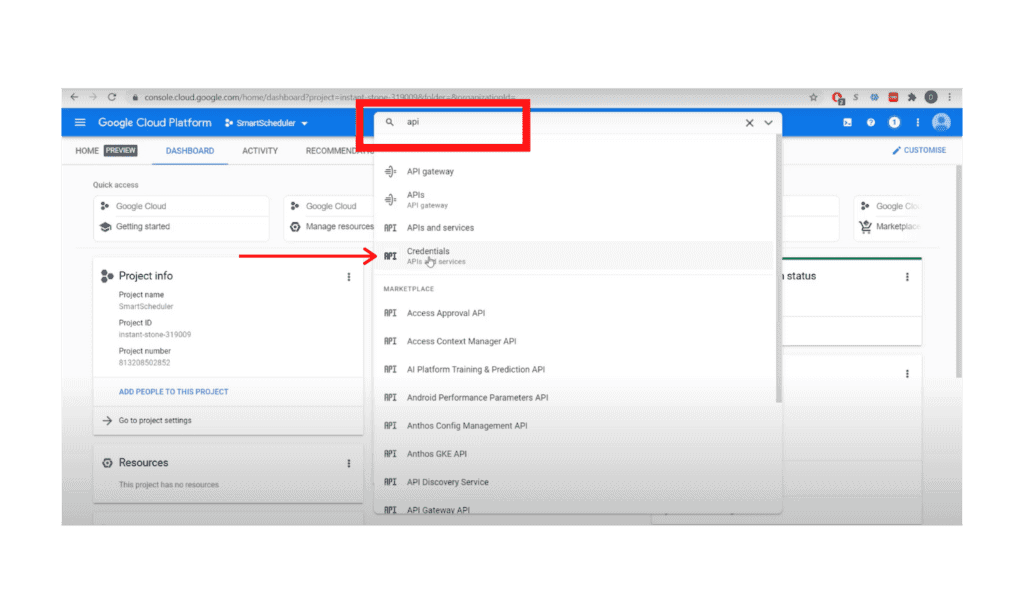
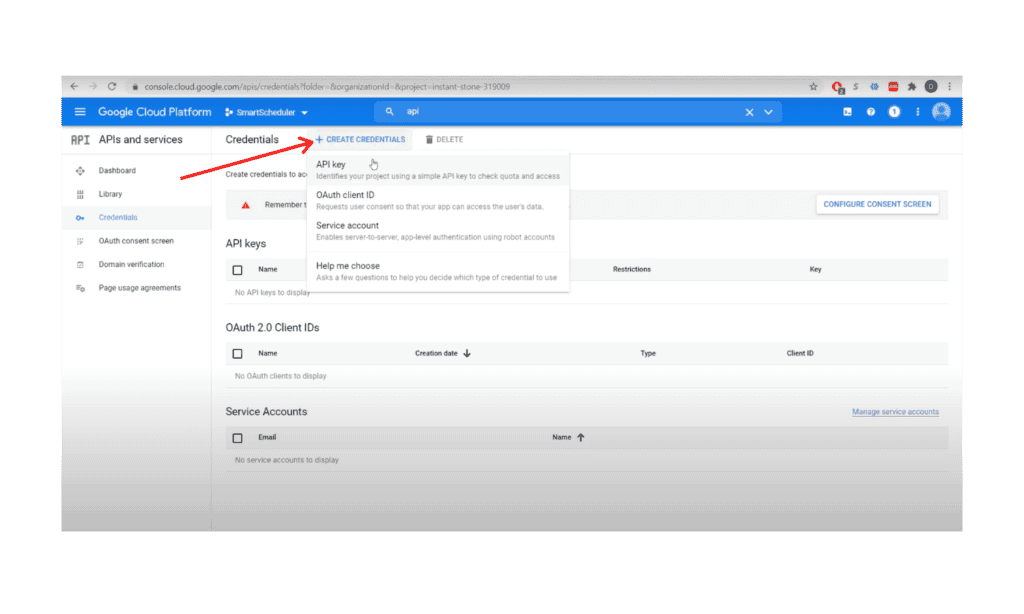
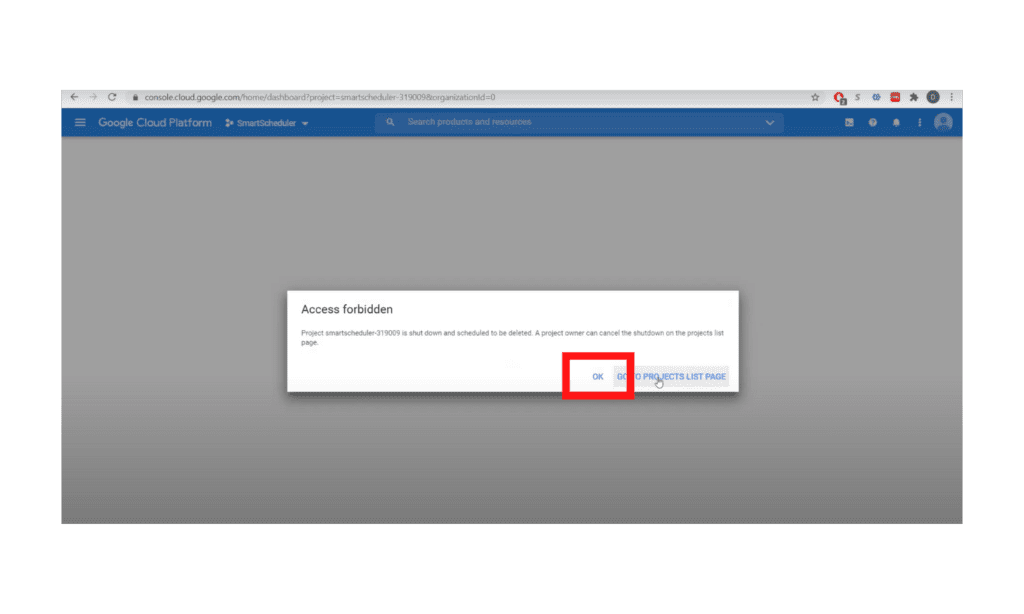
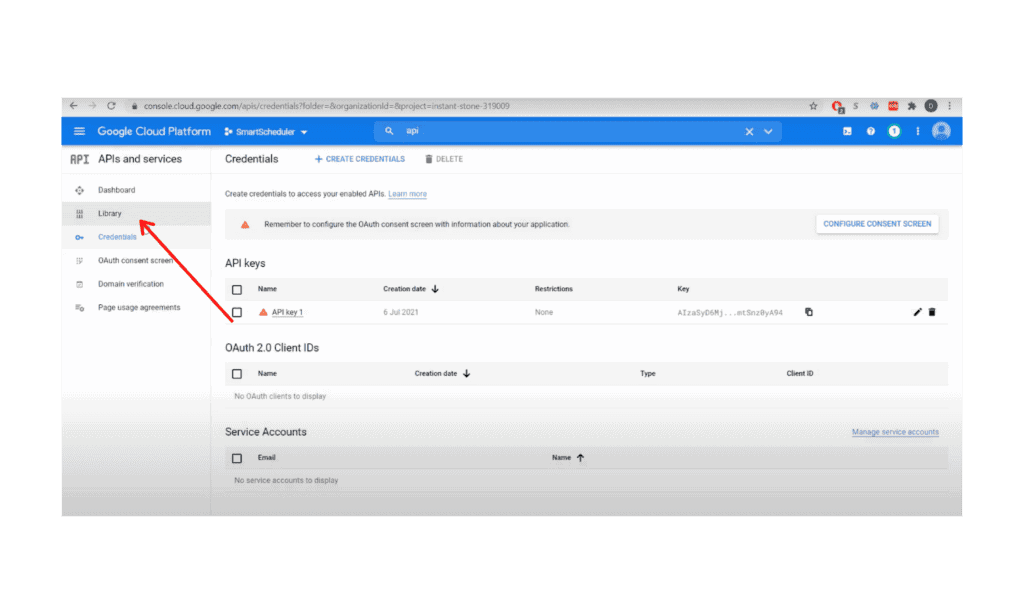
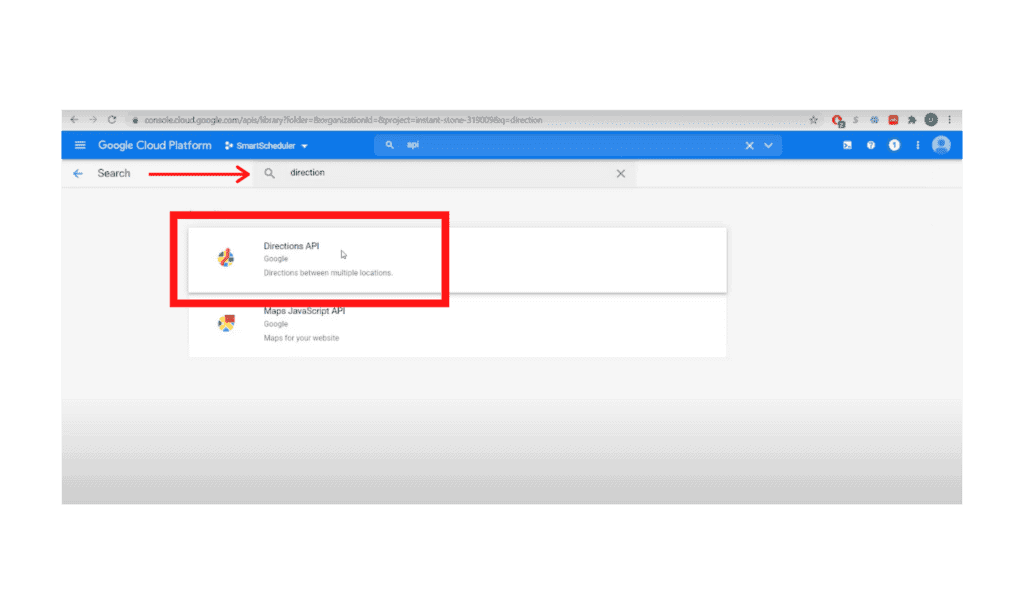
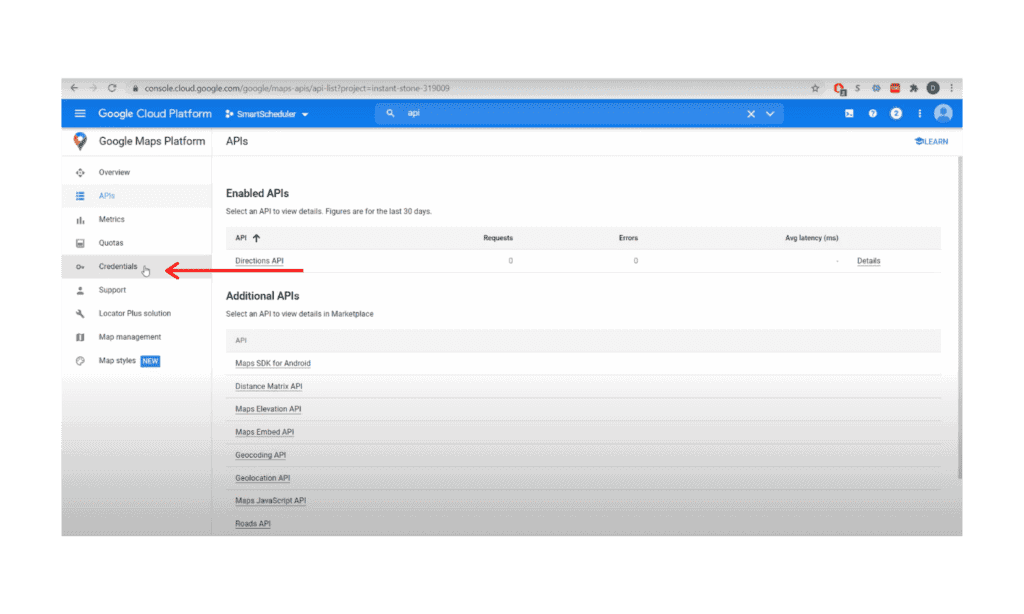
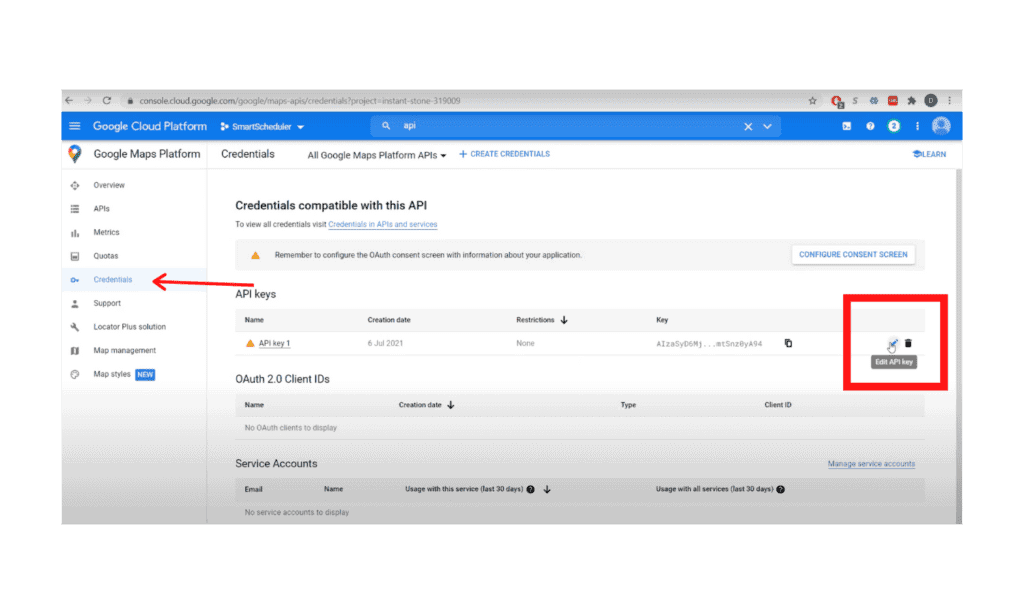
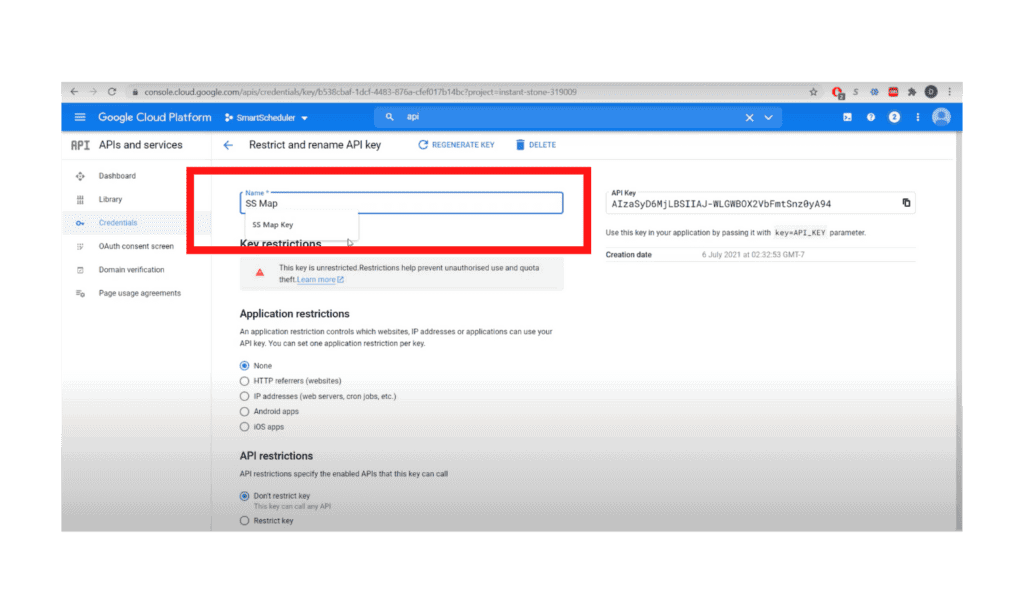
SmartScheduler extension for Zoho CRM allows for easy appointment-setting, dispositioning, and route optimization, all while writing everything back to your CRM. This integration with Google Maps allows you to schedule and perform routing tasks with ease.

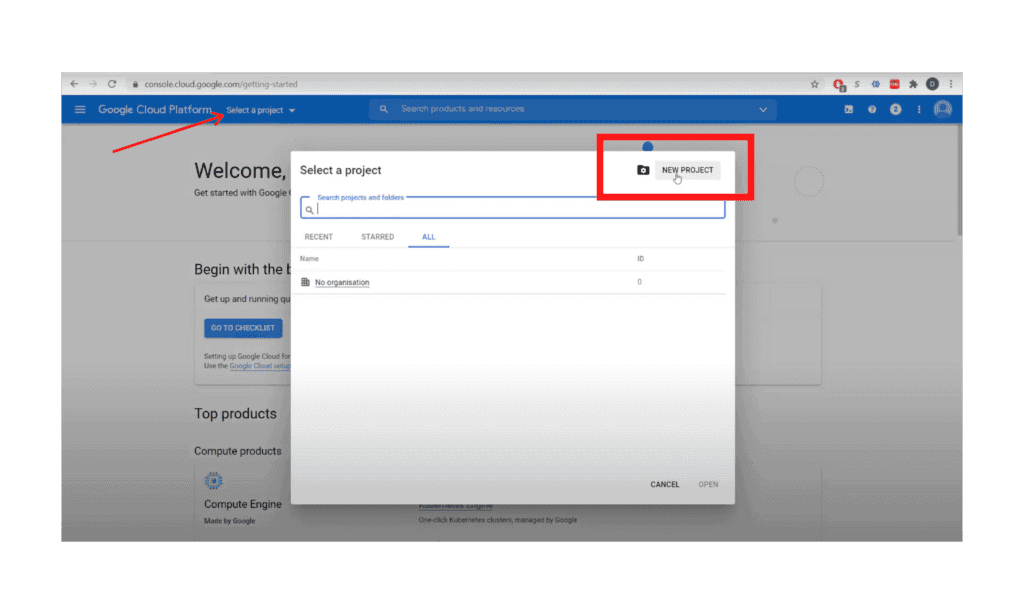
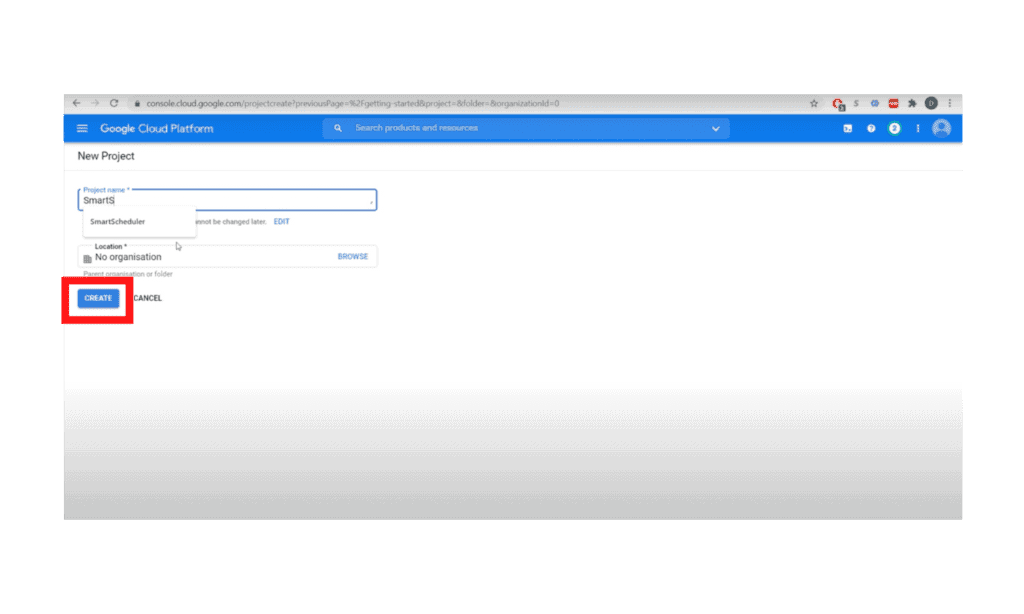
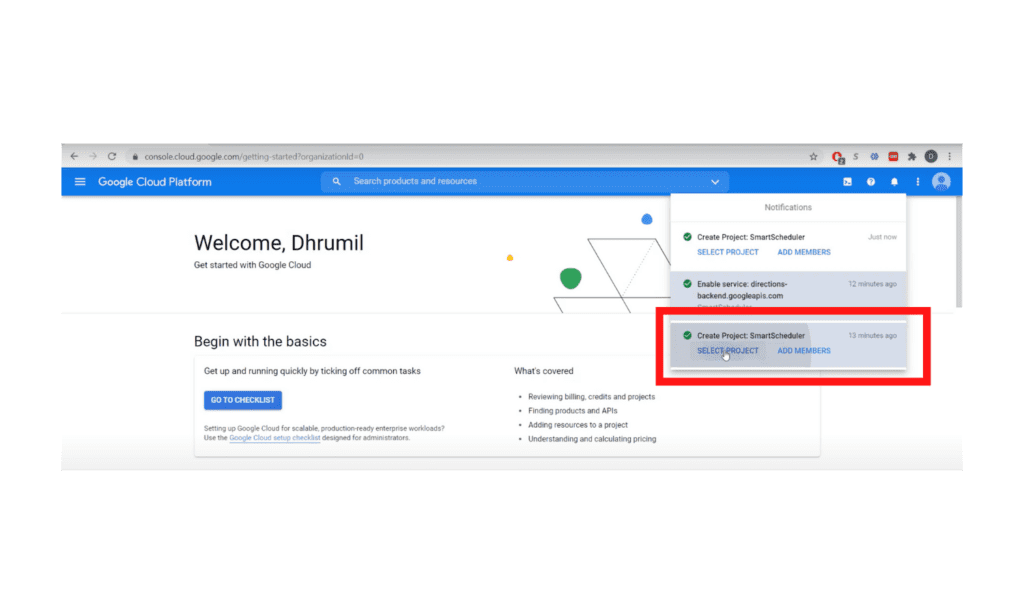
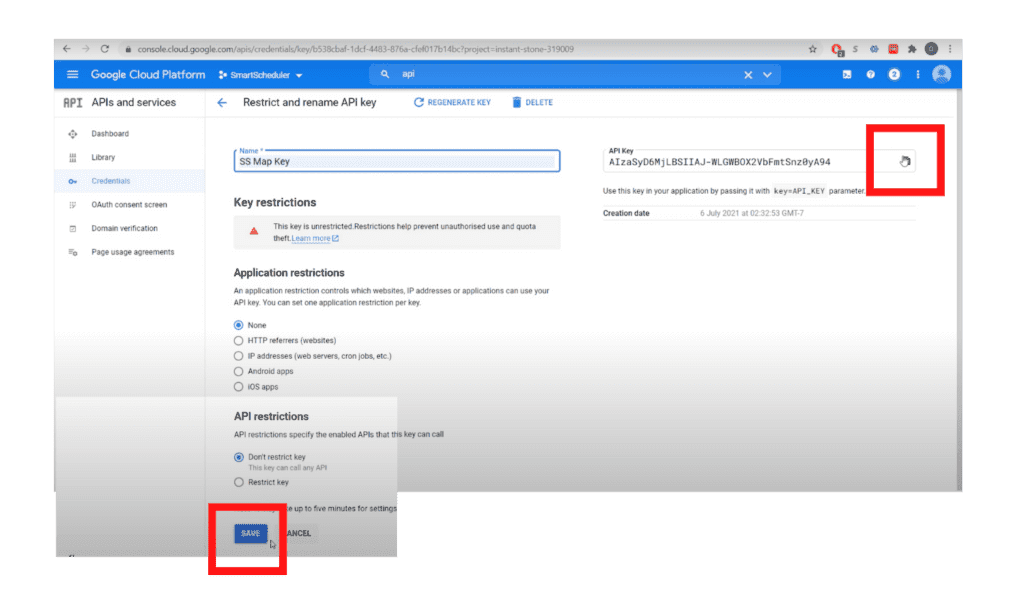
Due to changes within Google, it is now required for ZBrains clients to provide the API key for this integration to us. Please see this video and written instructions below for a quick and straightforward how-to.

How To Generate Google Map API key

Step 1 :

1a. Go To – https://console.cloud.google.com/

Step 2:

2a. Create a Project. 

2b. From “Select a Project” dropdown, click “New Project”

2c. Name it “SmartScheduler,” click “Create”

2d. Wait for the project to be created, then select the project from “Notifications”

Step 3:

3a. Then select your recently created project from the “Select a Project” list

3b. Search for “API” and click on “Credentials”

3c. In Credentials, Click on “+ New Credential” and Create API Key

3d. Then close the API Key window

 3e. *click OK if you see Access Forbidden message

Step 4:

4a. Go to the Library 

4b. Search for “Direction”

4c. Click “Directions API” and Enable

Step 5:

5a. Go to Credentials

5b. Select edit, then rename API name to”SS Map Key”

5c. Copy key and click Save

End

For additional documentation, please see the Using API Keys article from Google


Other questions? Give us a call at (888) 207-4111 or contact us.

Contact Us


SmartScheduler™

from

zoho smartscheduler

Free Guide to Zoho CRM Implementation

Free Guide to Zoho CRM Implementation

In this info-packed guide, you’ll find a full spectrum of our advice from the point of researching a new Zoho CRM implementation, through planning and selecting a vendor, all the way through to implementation support options.

ZBrains has been building end-to-end solutions using Zoho since 2012, and today we’re one of Zoho’s top Premium Partners. Now you can get our advice for free!

Request our comprehensive guide to CRM implementations!